
Turn In lets a teacher submit a week of plans to their administrators. There's nothing to set up — it's available to every teacher in a group account.
What teachers do
In the weekly view there's a Turn In option. Clicking it makes that week viewable by administrators in the group.

Once a week is turned in, they see the date they submitted it and an option to undo.
Two things worth telling your staff:
- Turning in is per week, not once for the year — it's a weekly habit.
- Weeks that aren't turned in can't be seen by administrators. That's the design: teachers control when a week is ready to be looked at.
What you see
Go to Group in the navigation bar for the list of teachers.
The Latest column shows each teacher's most recently turned-in weeks. Click a week to go straight to it, or use View All for everything a teacher has submitted.
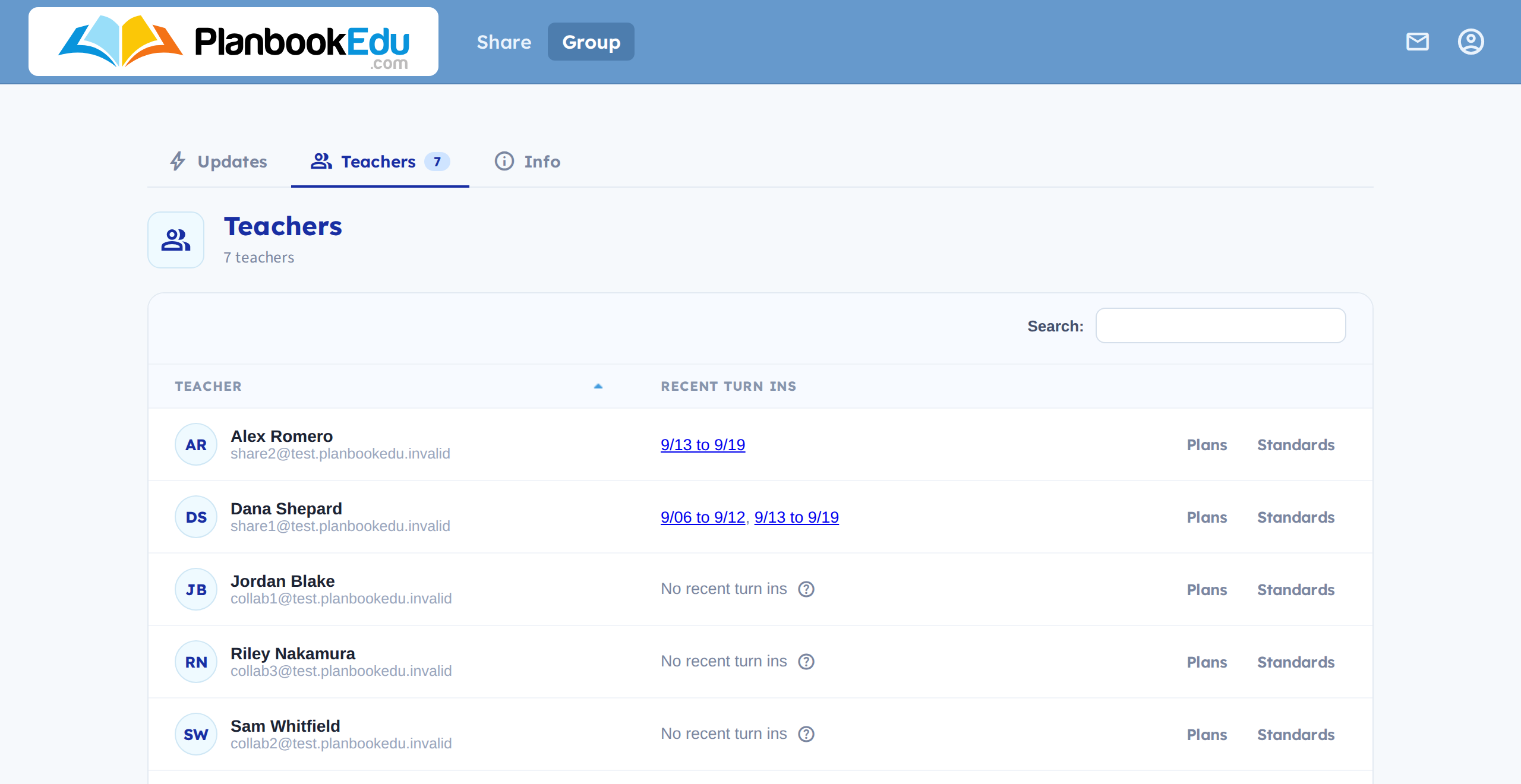
The Updates screen is usually the faster route — it's a feed of what's been turned in since you last looked.
Giving feedback
Open a turned-in week and use Comments. You can't comment until the week has been turned in — see Review and comment on plans.
Making it work in practice
Turn In has no deadlines, reminders or enforcement built in. It's a submission mechanism, not a compliance system, so the expectation has to come from you — "plans in by Friday for the following week" is the sort of thing that works, communicated to staff rather than configured in the app.
Two things that help:
- Check Updates rather than chasing. It shows you who has submitted without you having to ask.
- Comment on what you read. Teachers can see comments and reply, so turning in stops feeling like filing into a void.