
If your account has administrator access, a Group option appears in the navigation bar. Inside it are three areas: Updates, Teachers and Group.
Updates
The activity feed, and the right place to start. It shows the latest events from your teachers:
- New weeks turned in
- New comments teachers have left on their plans
Click View on any item to go straight to that week or comment.
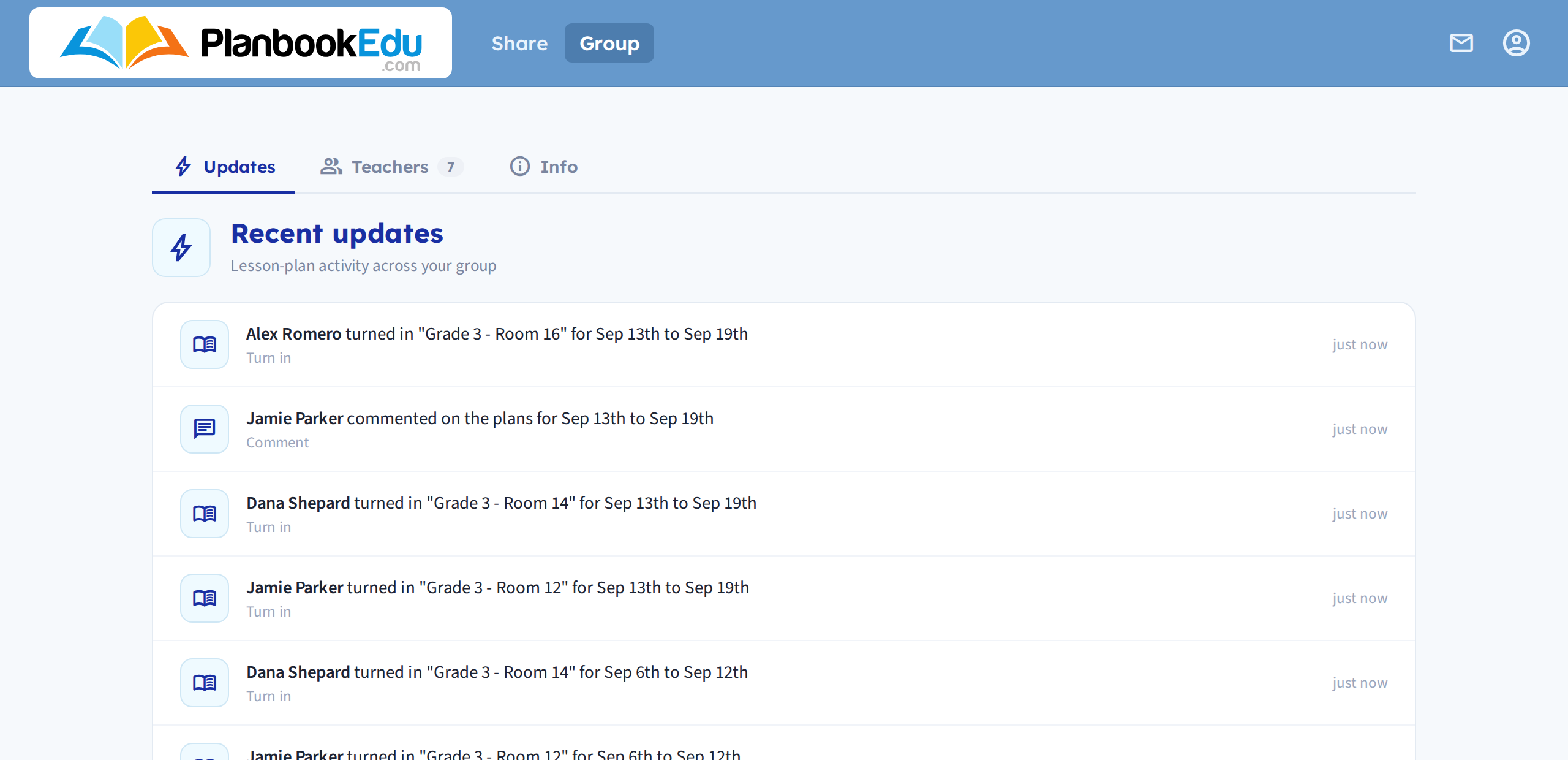
If you check one screen a week, make it this one — it's what's changed since you last looked, rather than a list you have to scan.
Teachers
The full list of teachers in your group.
Sort by clicking the Teacher column heading, or use the search box to find someone by name. Each teacher has two links: Plans and Standards.
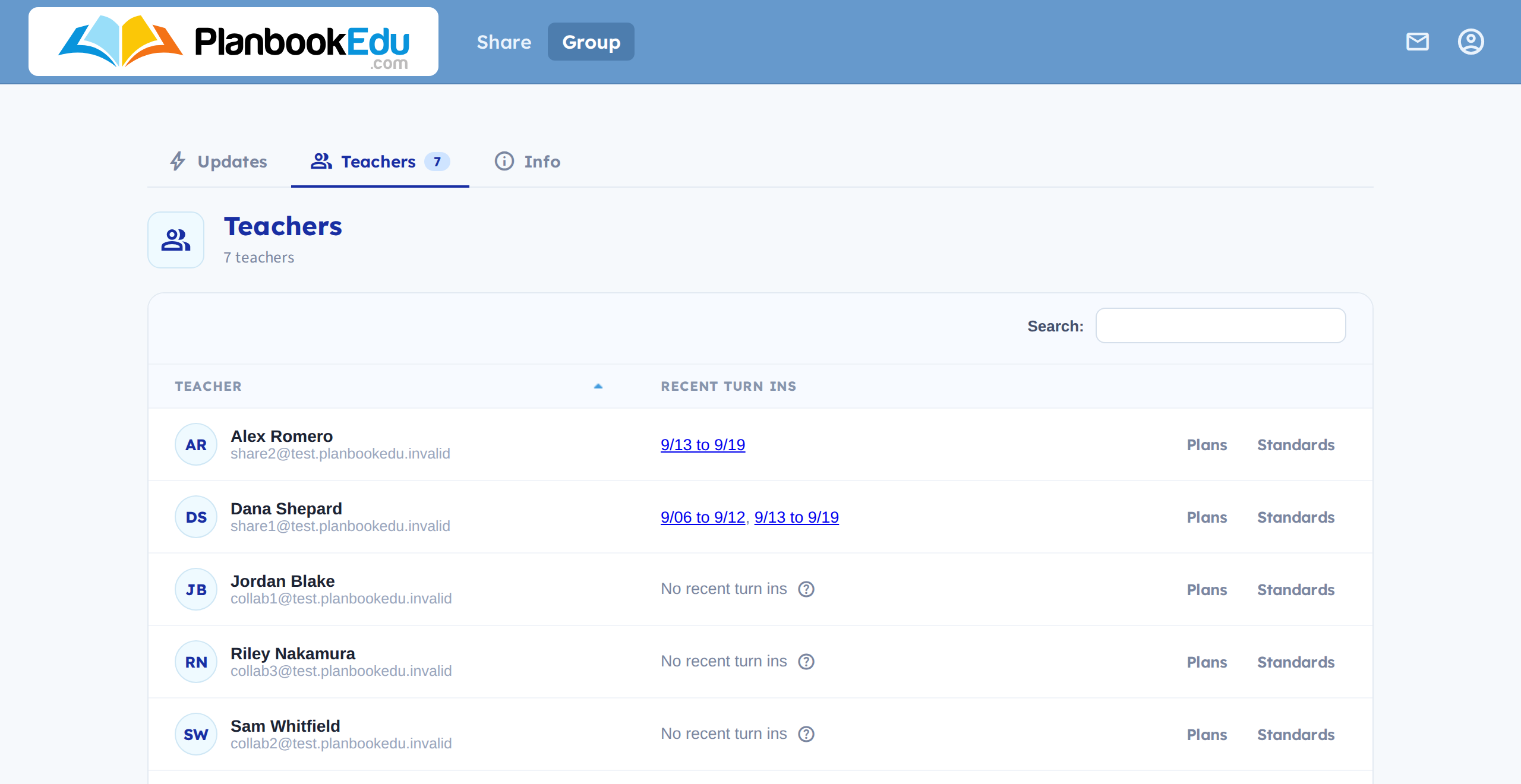
Teacher names come from each teacher's own account settings. If someone is showing up in a way that isn't useful, ask them to update the Name field on their Account page — see Add and remove teachers.
A teacher's plans
Clicking Plans shows a calendar of that teacher's year, with a legend at the top:
- Turned in · click to view — highlighted weeks; click one to read the plans
- Not turned in — plain weeks, which you can't open
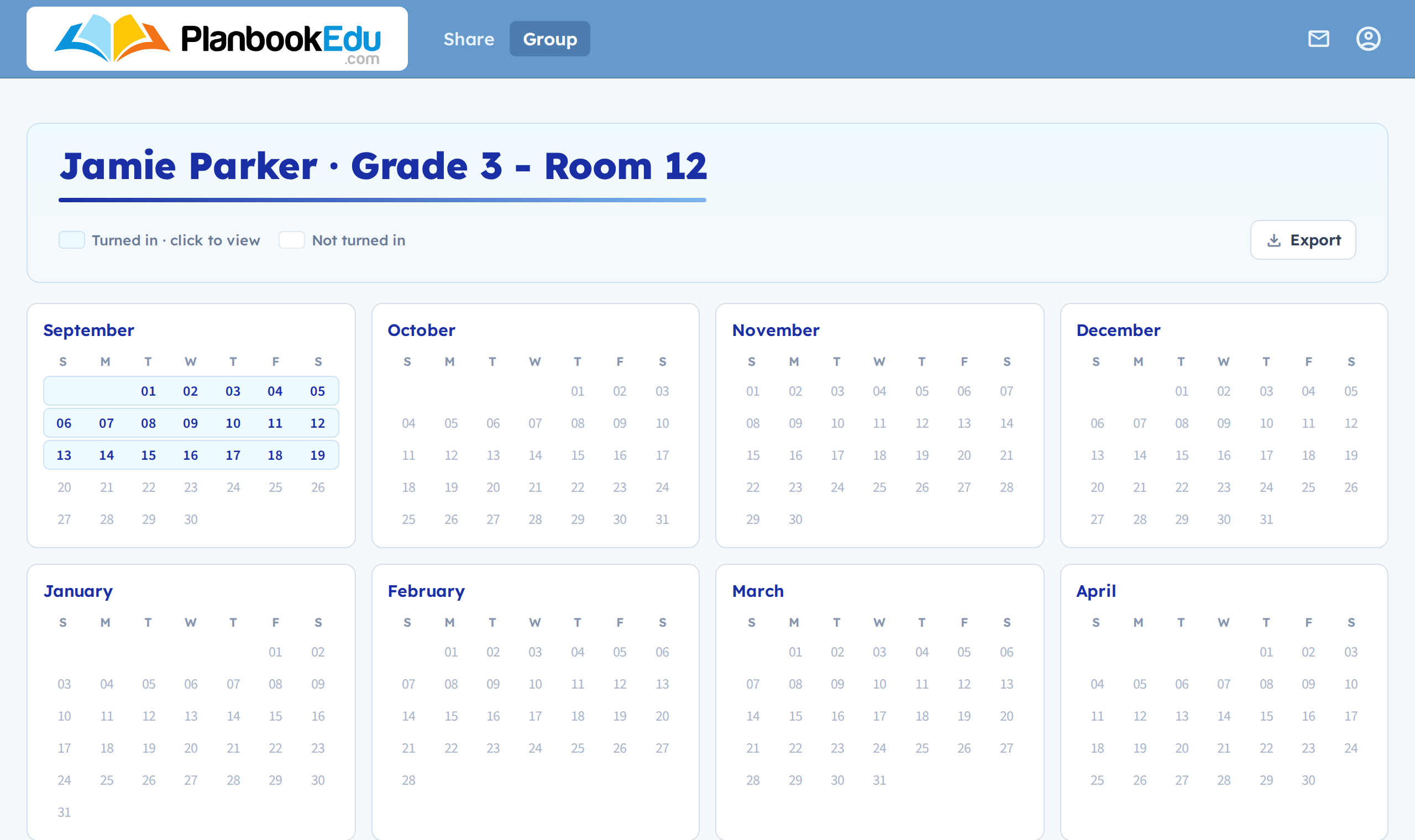
At the top you'll see the teacher's name and which planbook you're looking at. This Week jumps to the current week. Switch planbook moves to another of that teacher's planbooks — useful for last year's plans, or for a teacher keeping separate planbooks per subject.
A teacher's standards
Clicking Standards shows which standards they've covered so far, in the same form as standards reporting.
Leaving feedback
Open a turned-in week and use Comments — see Review and comment on plans. You can't comment on a week until it's been turned in.