
Once you're tagging lessons, the report tells you what you've actually covered. It's the payoff for the tagging, and it's the thing to open before an evaluation or a planning meeting.
Click Standards in the main navigation for a list of the sets in your planbook, then click a set for its detailed report.
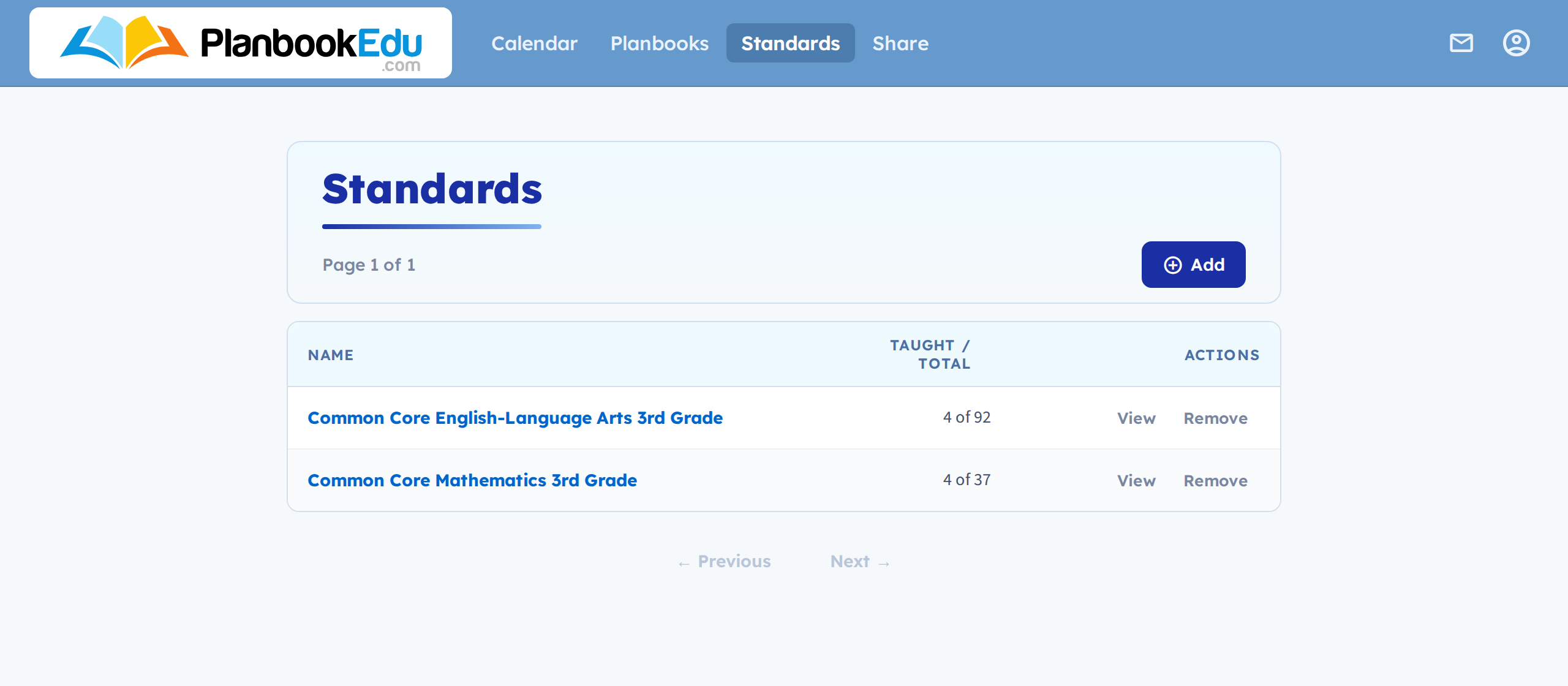
Reporting works for built-in sets and custom standards alike.
Reading it
Each standard shows as either:
- Not taught — no lesson in range carries this standard
- Taught, with a count of how many lessons cover it
Click a count to list the lessons. Each has a Jump link that takes you straight to that week in the calendar — so "when did I teach this?" is two clicks, not a scroll through the year.
Filtering by date
By default you're looking at the whole planbook. Three controls narrow it:
- Filter — enter a start and end date and search, for a report on one unit, week or semester
- Year To Date — everything from the start of the year up to today, which is the honest view mid-year
- Reset — back to the full year
The date filter matters more than it first appears. A standard showing "taught" across the whole planbook may still be untaught so far — and a report run for the current semester is what most evaluation conversations are actually about.
Using it to plan
Sorting out what's left is the point. Late in a term, filter to the year so far, look at what's still "not taught", and plan the remaining weeks against that list rather than against memory.
If a lesson isn't counted
Check the standard is attached to the lesson itself — see Attach standards to a plan. Standards can only be attached in the full editor, so a plan tagged in quick edit has no standards at all.