
Once there's a lot in your Cubby, folders are what keep it usable. Plans arrive unsorted; you file them.
Open the organizer
Open the Cubby by clicking its tab on the left, then click Organize at the bottom of the list.
You'll see everything you've stored. New items sit in the unsorted area until you move them.
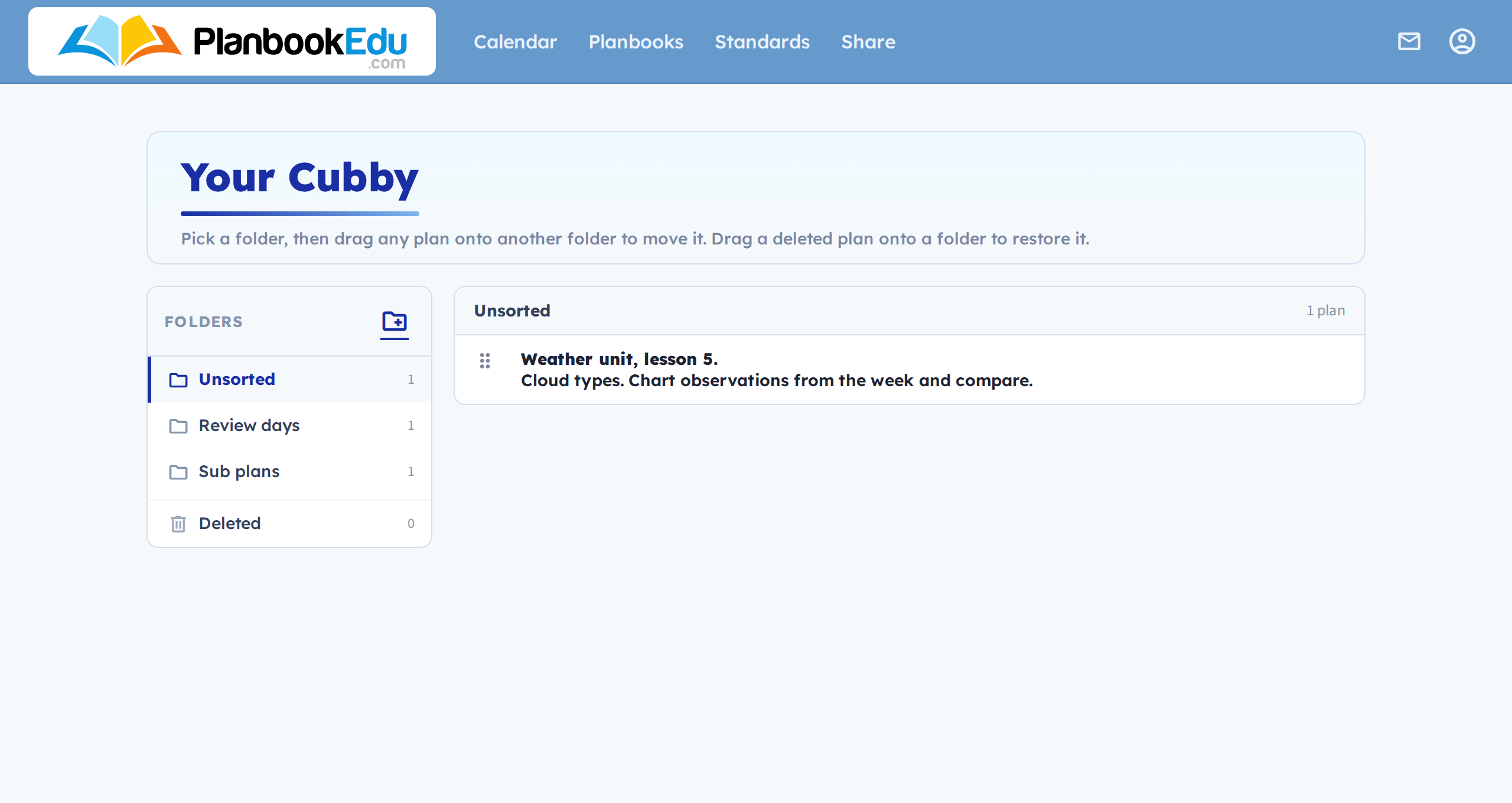
Create a folder
Click Add Folder at the top and give it a name. Make as many as you need.
Names that describe when you'd reach for it work better than subject names alone — "Sub plans", "Review days", "Unit 3 — fractions".
Move plans into folders
Drag a plan by its handle and drop it onto the folder you want.
The same drag moves plans between folders, so re-filing something is no different from filing it the first time.
Restoring a deleted plan into a folder
The Deleted folder is pinned at the bottom of the folder list, holding plans removed in the last three days. Drag one onto a normal folder to restore it — see Recover deleted plans.
Getting a plan back into your planbook
Folders are for storage; placing works the same as always. Navigate to the week you want, open the Cubby, and drag the plan out onto a box — or onto a day header for a whole day. See Drag plans between weeks with the Cubby.