
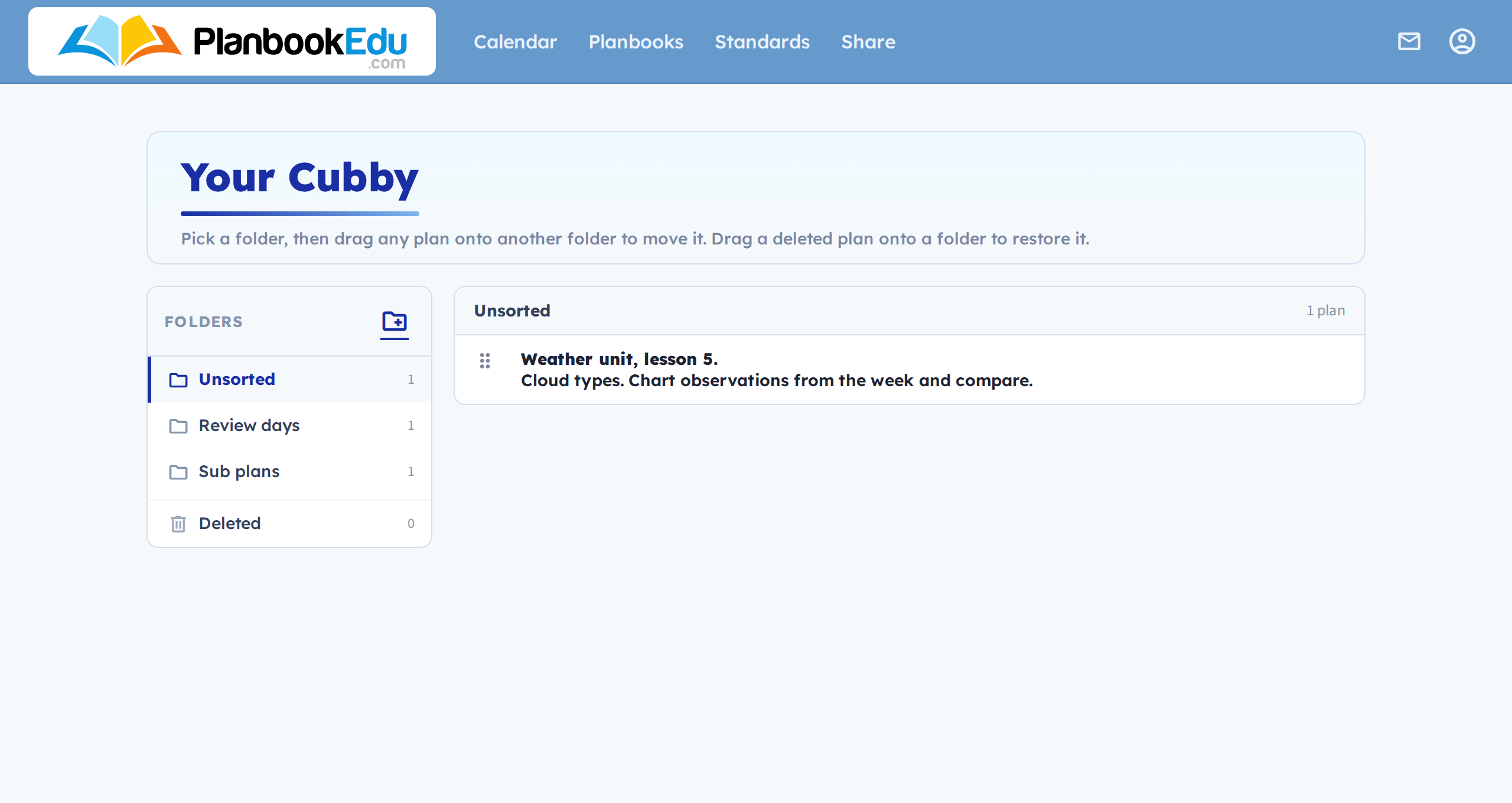
The Cubby is a shelf you can put plans on. Drag a plan into it, go anywhere else in PlanbookEdu, and drag it back out.
That solves something the grid can't: dragging only works within the week you're looking at. The Cubby lets you move a plan to a different week, or to a completely different planbook.
What can go in it
Single plans, whole days, or any number of both. There's no limit on how much you keep in there.
Using it
- Start dragging a plan by its handle — the Cubby slides into view on the left.
- Drop the plan in. You're asked whether to move or copy it.
- Navigate to wherever you want it — another week, another planbook.
- Drag it back out onto a box (or, for a whole day, onto a day header).
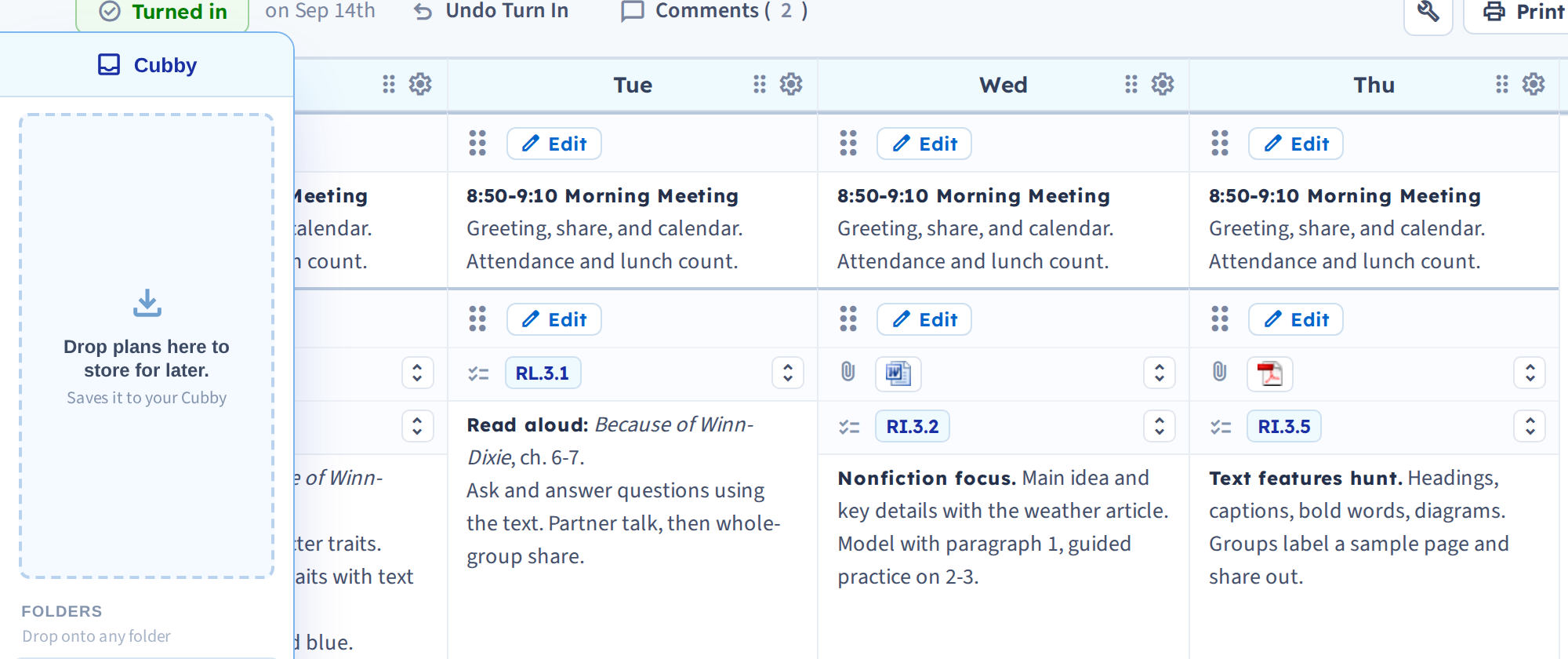
Move takes the plan out of your planbook and into the Cubby. Copy leaves the original where it is.
Things worth knowing
Items stay indefinitely. Sign out, come back next week, switch computers — whatever is in your Cubby is still there.
The tab is hidden when the Cubby is empty. If you can't see it, there's nothing in it yet; start dragging a plan and it appears. See Cubby troubleshooting.
It docks to the left on a desktop screen and to the bottom on a narrow one, so on a phone or small tablet look along the bottom edge rather than the side.
Items are marked by type. A single sheet is one plan; a stack is a whole day.
Remove an item with the red X.
What people use it for
- Moving a lesson to next week when a day runs short
- Building a library of reusable days — a review day, a lab, a set of substitute plans
- Copying material between two planbooks for classes you teach in parallel
- Recovering something you deleted, since deleted plans are restored into the Cubby
Once you have a lot in there, sort it — see Cubby folders.