
Dragging a plan works only inside the week on screen. To move one to a different week, or a different planbook, put it in the Cubby first. The Cubby travels with you.
The move
- Pick it up. Drag the plan by its handle — the Cubby opens on the left.
- Drop it in. Choose move (take it out of the planbook) or copy (leave the original in place).
- Go where you want it. Any week, any planbook. The Cubby keeps its contents.
- Drag it back out onto the destination box.
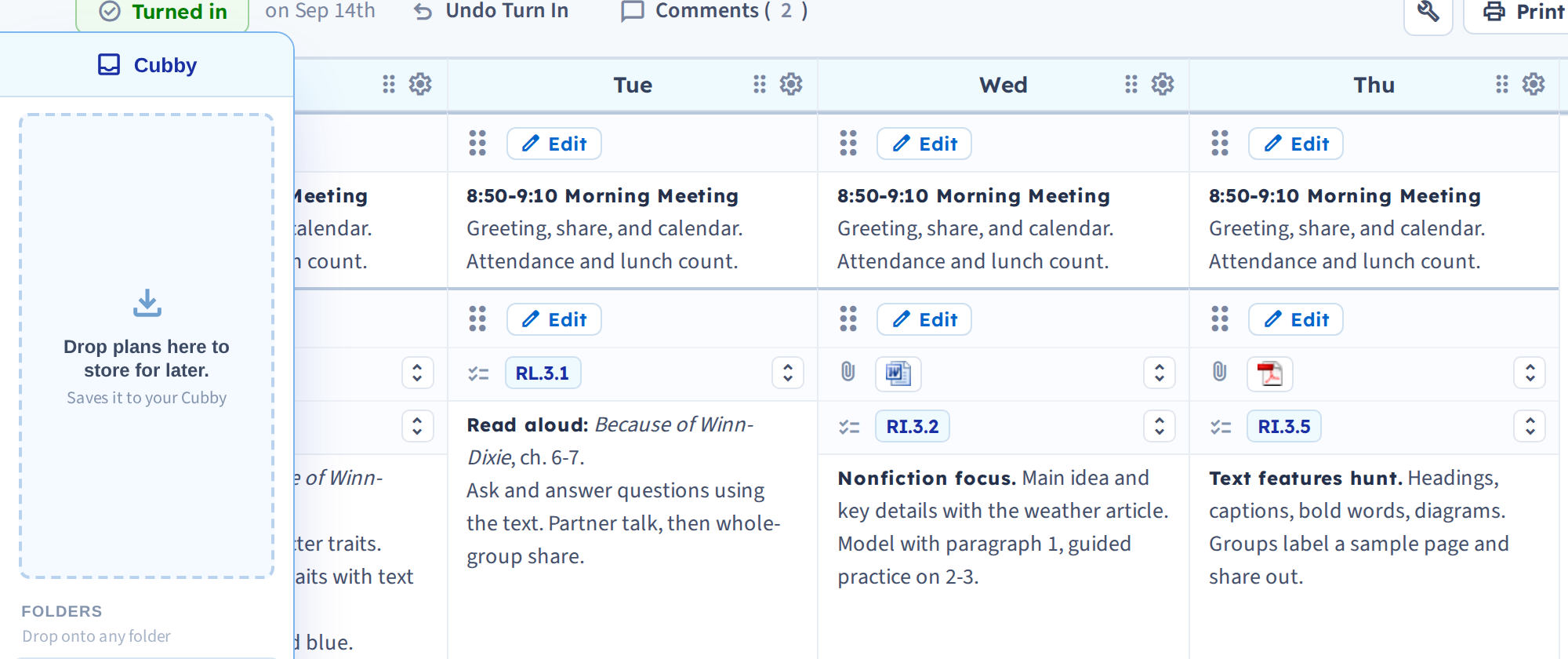
When you place it, you're asked again whether to move or copy, and you can choose to bump that period's plans forward rather than overwrite what's there.
Whole days
Same process, but grab the day header, and drop it back onto a day header rather than a single box. See Move and copy days.
Between planbooks
This is the part that surprises people: the Cubby isn't tied to a planbook. Park a plan, switch to another planbook from the Planbooks list, and drag it out there.
That makes it the tool for teachers running parallel sections, and for lifting a good lesson out of last year's planbook into this year's.
If the Cubby doesn't appear
It only shows when it has something in it, or while you're mid-drag. See Cubby troubleshooting.