
The monthly view shows several weeks at once. It's the view for planning a unit, checking pacing, or answering "when did I last teach this?".
Open it
Click the month name from the year calendar, or Month in the Day / Week / Month switcher in the weekly view.
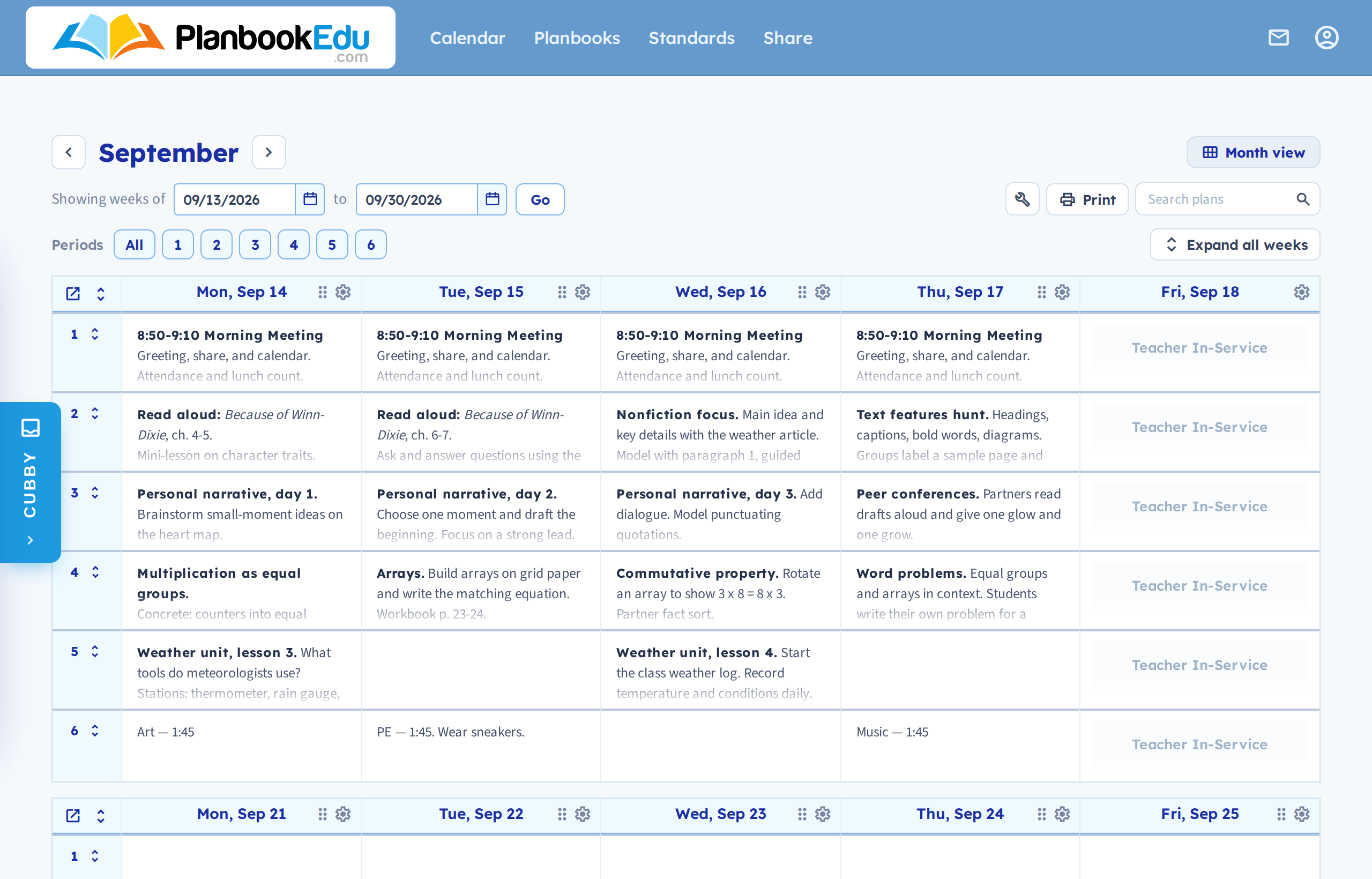
To go back to a particular week, click that week's link.
Plans start condensed
So that a month fits on screen, plans are shown condensed. There are two ways to open them up:
- Click a period to expand that row and see the plans in full, including attachments and standards.
- Expand all weeks opens everything at once. The button toggles back to collapse them again.
You can edit here as anywhere else — double-click a box to quick edit it. Day links take you through to the weekly view.
Filtering by period
This is what makes the month view genuinely useful for long-range work. Along the top is a row of period chips plus All.
Click a chip to hide or show that period. To look at one period only, click All to switch everything off, then click the single period you want.
Following one class down a month — without the other five getting in the way — is how you spot that a unit is running long, or that you've drifted from your pacing guide.
Everything else still works
Moving plans, the Cubby, quick edit — the month view is a working view, not a read-only summary.
Related: Year calendar view · Weekly view