
There are two ways to write a lesson entry in PlanbookEdu: the full Edit window, which gives you every option, and Quick Edit, which lets you type straight into the grid.
Edit
Click the Edit link at the top of any box. The full editing window opens with formatting tools, the repeat setting, standards and attachments.
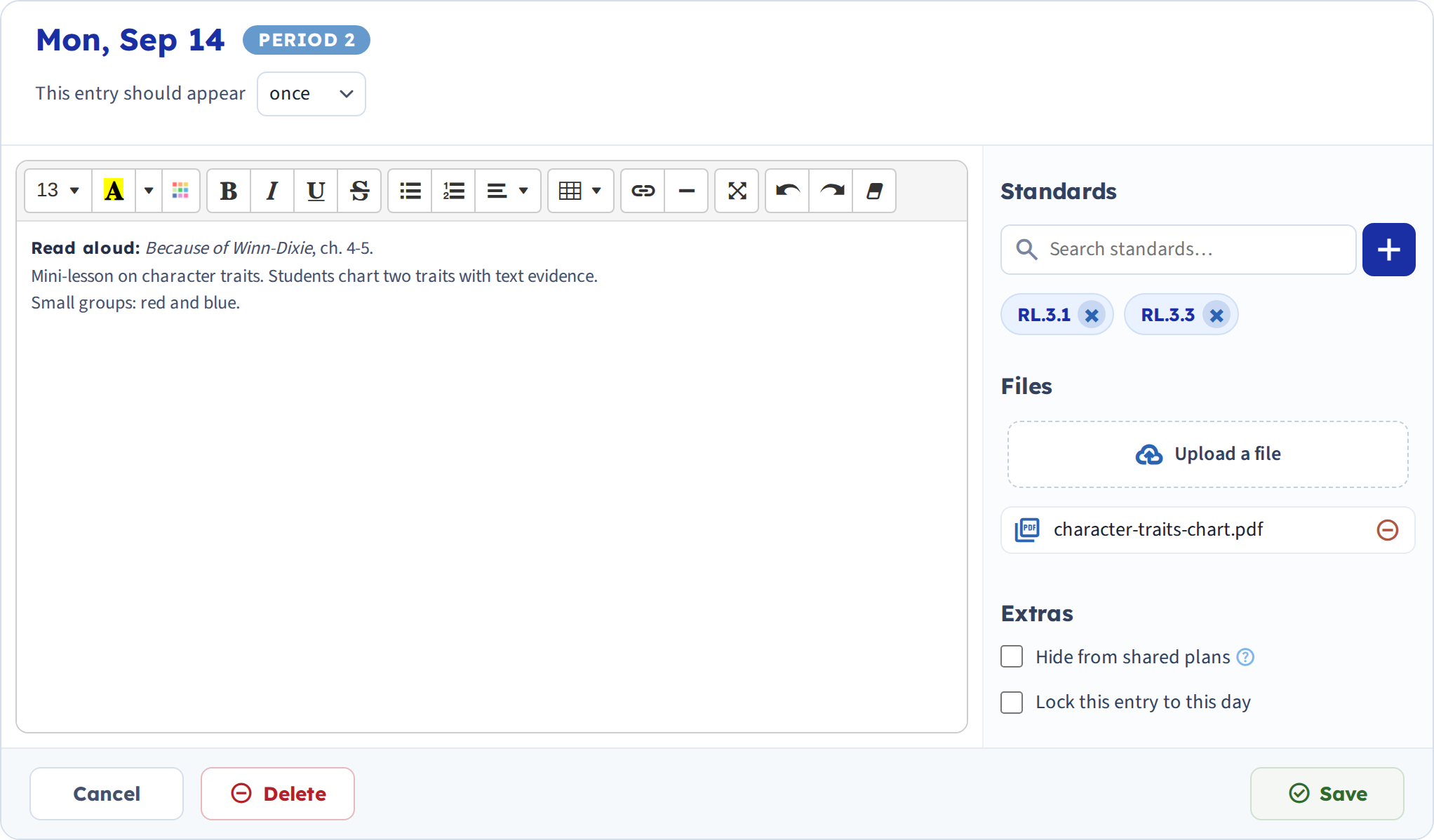
- Click Edit on the entry you want to change.
- Choose how often the entry should appear — once, daily, or on your schedule's cycle. See Repeat a plan across the year.
- Type your plan, attach standards or files, then click Save.
Quick Edit
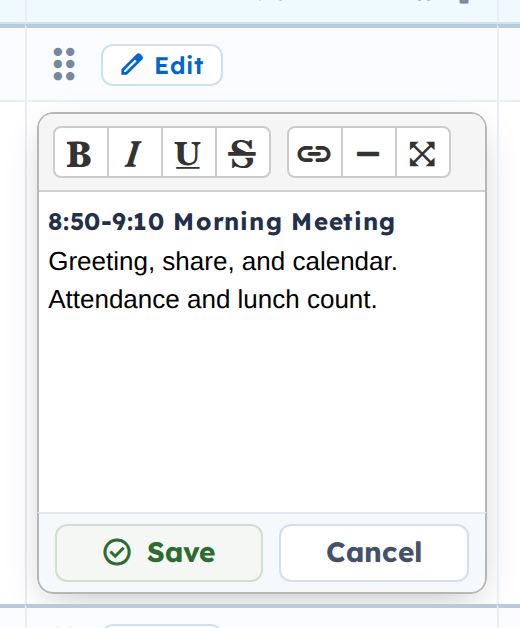
Double-click inside a box. A small toolbar appears in place and you type without leaving the week.
What's missing in Quick Edit
Put the two side by side and the difference is the toolbar. Quick Edit keeps bold, italic, underline, strikethrough, links, a horizontal rule and fullscreen. It drops font size, text and background colour, lists, alignment and tables.
Three things are missing beyond formatting:
No repeat setting. Every quick edit is a one-time entry — so quick-editing a repeating entry converts that day to a one-off. That's often exactly what you want when adding this week's detail to a template, and occasionally a surprise.
No standards. The Standards search lives in the full window only. See Attach standards to a plan.
No file attachments, and none of the Extras — you can't hide a plan from shares or lock it to its day from Quick Edit.
If you need any of those, use Edit instead.
You can quick edit several entries at once — just click Save on each one before you leave the page.