
The weekly view is where you'll spend nearly all your time. It shows one week as a grid: days one way, periods the other, a plan in each box.
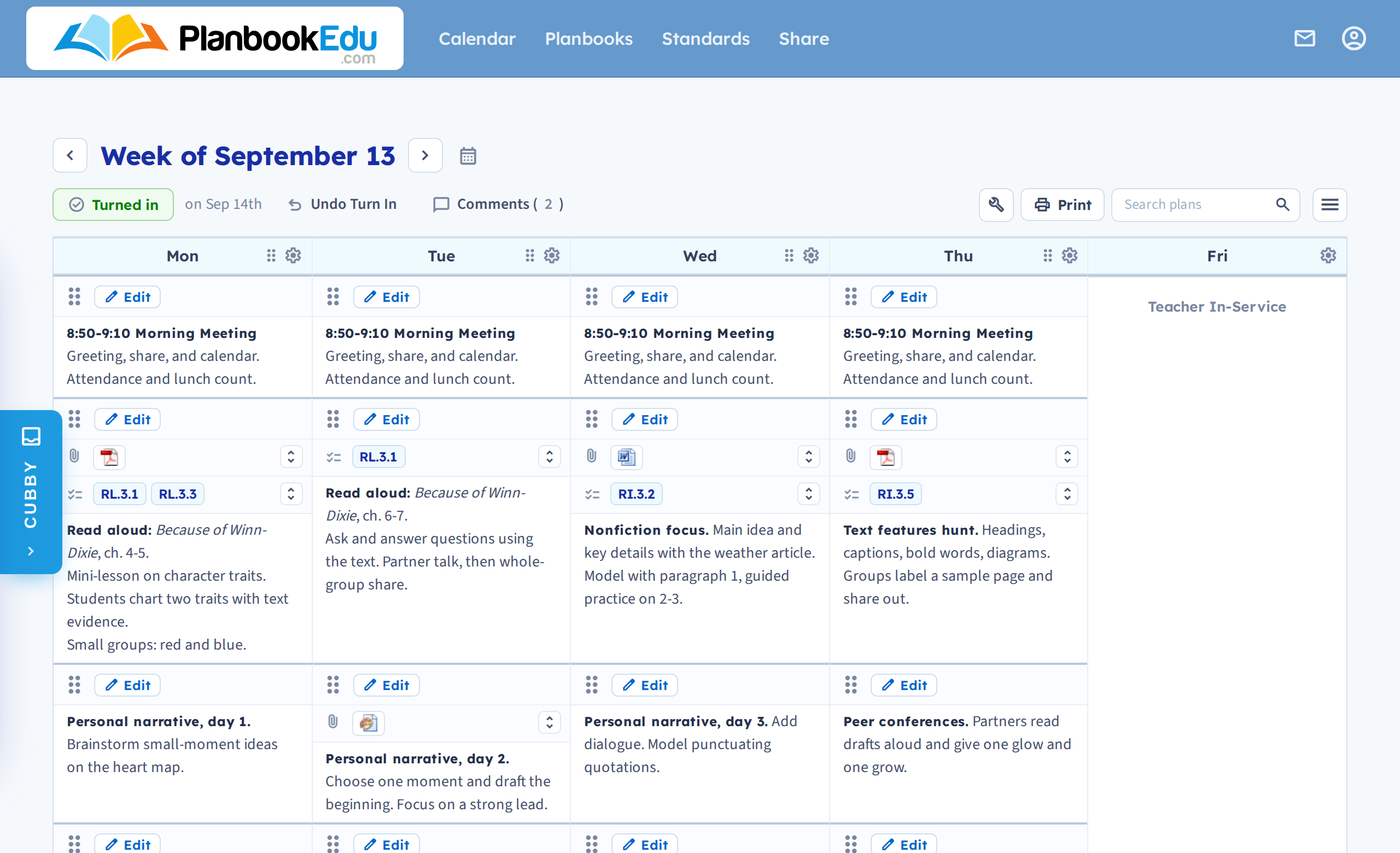
Moving between weeks
Use the arrows either side of the week title. The calendar icon jumps you back to the current week from wherever you are.
What you can do from here
- Write a plan — click edit on a box for the full lesson editor, or double-click for quick edit
- Move plans — drag a box onto another, or into the Cubby
- Day actions — the cog next to each day name offers Bump, Off Day, Clear, Print and Link
- Display options — the wrench icon holds spell check, and whether standards and attachments show as codes and icons or in full
- Search plans — its own box in the header, not in the wrench panel; see Search your plans
Changing how the grid looks
The week is drawn according to your planbook's settings — how many periods, which days, and whether days run across the top or down the side. All of that lives in Building Your Planbook, particularly advanced options.
Other ways to look at the same plans
- Daily view — one day, uncluttered
- Monthly view — a month at a time, for long-range planning
- Year calendar view — the whole year at a glance
New to the app? Start with The weekly view: a tour.