
The daily view shows a single day's plans with the rest of the week out of the way. It's the view to teach from, and the one to send a substitute.
Open it
Click the name of the day in the weekly view.
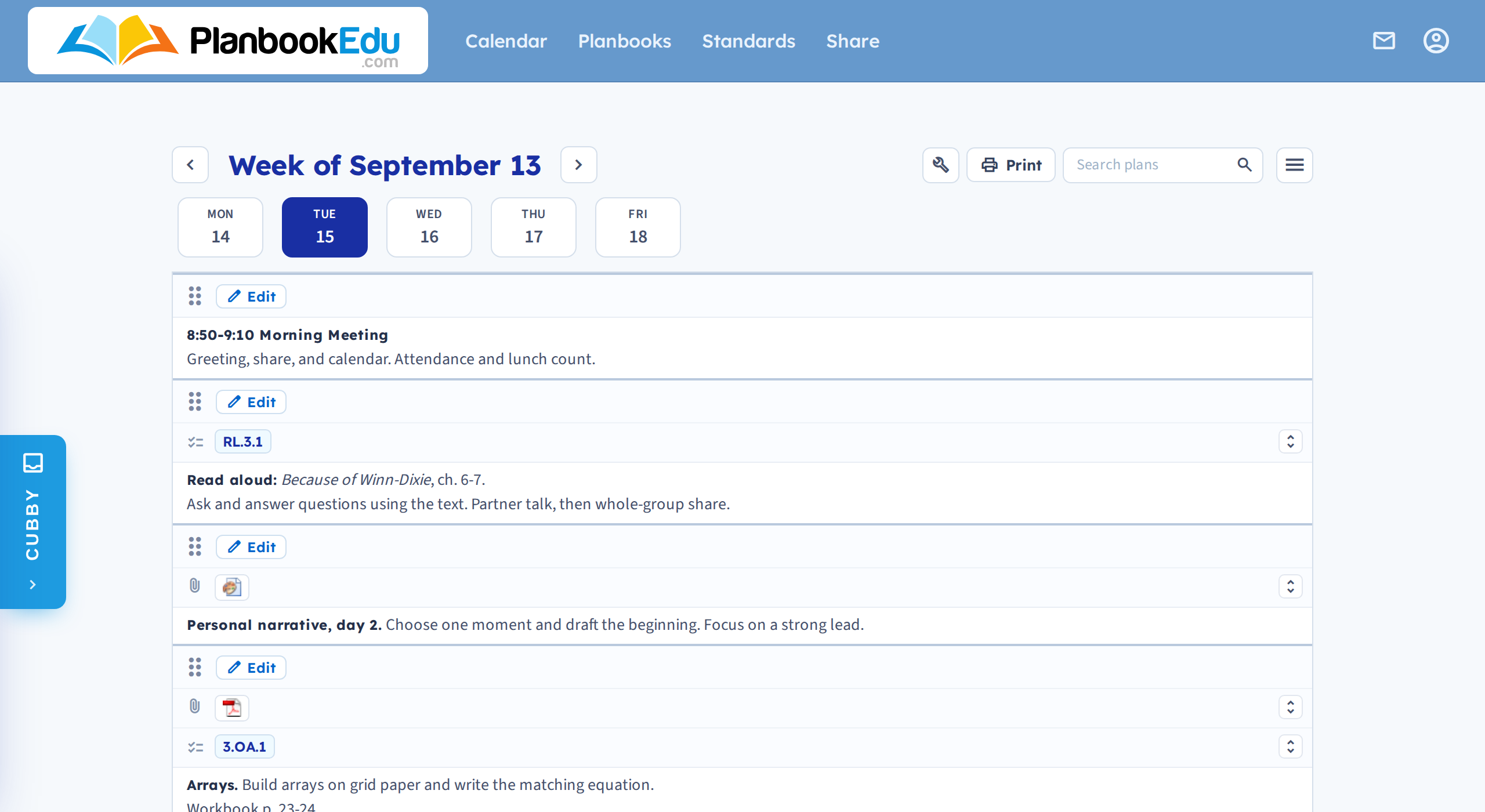
Move between days with the arrows . To go back to the week, click Week in the Day / Week / Month switcher.
What you can do here
Everything you can do in the weekly view. Click edit for the full lesson editor, or double-click a box to quick edit it. Plans are the same plans — this is a different way of looking at them, not a separate copy.
Printing and exporting one day
Click Print to print the day, or export it to Word or PDF.
This is the quickest way to produce substitute plans: one day, on its own, in a format you can email. See Export to Word or PDF and Print your plans.
For a link a sub can open in a browser — no attachment, always current — use Share a week, day, or single period instead.
When to use it
- Teaching from it. One day fills the screen, so plans stay readable without leaning in.
- Long plans. If your boxes are cramped in the weekly grid, this gives them the whole width — see Adjust the box size.
- Substitutes. Print, export or share exactly the day they need.
Related: Single day view · Weekly view