
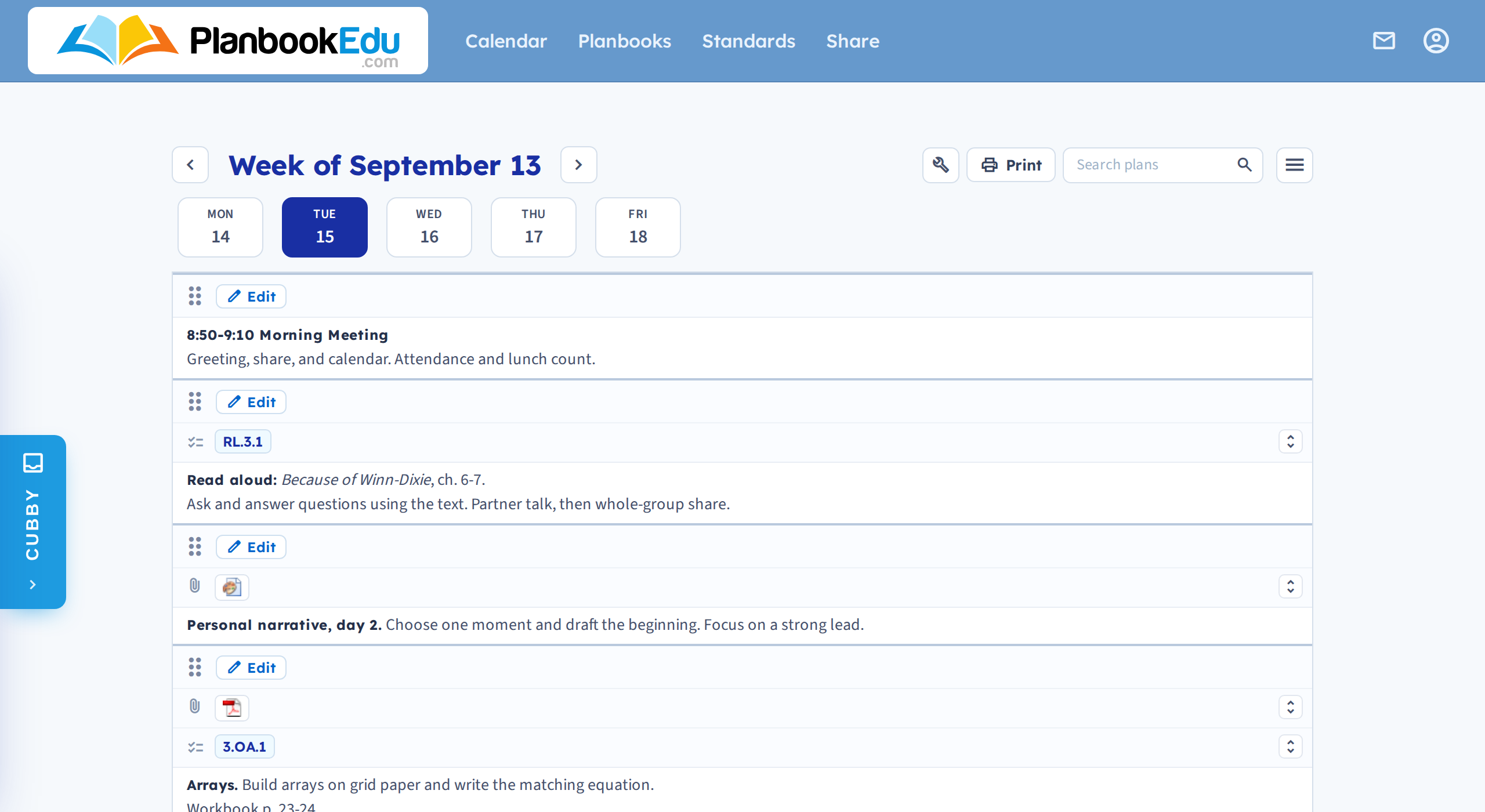
Clicking a day title in the weekly view opens that day on its own. It's the same plans, with the rest of the week out of the way — see Daily view for what you can do once you're there.
Narrowing to one period
You can go further and show a single period of a single day. This is useful when one class's plan is long enough that even the day view feels busy, and when you want to print or share just that block.
The day view carries links through to individual periods, so you reach it the same way you reach the day: by clicking through rather than by changing a setting.
With one period on screen, the period column and title row are dropped — you get the plan and nothing else.
Getting back
Week in the Day / Week / Month switcher returns you to the weekly view. The arrows move you between days.
When this is the right view
- Printing one block for a colleague covering a single period
- Reading a long plan without the grid squeezing it
- Sharing one period rather than a whole day or week — see Share a week, day, or single period
Editing works here exactly as in the weekly view: edit for the full lesson editor, double-click for quick edit.