
Everything you can do with a single plan you can do with an entire day. It's the same drag, started from the day header rather than a box.
Move or copy within the week
- Grab the day's drag handle in its header.
- Drag it onto another day header.
- Choose move or copy.
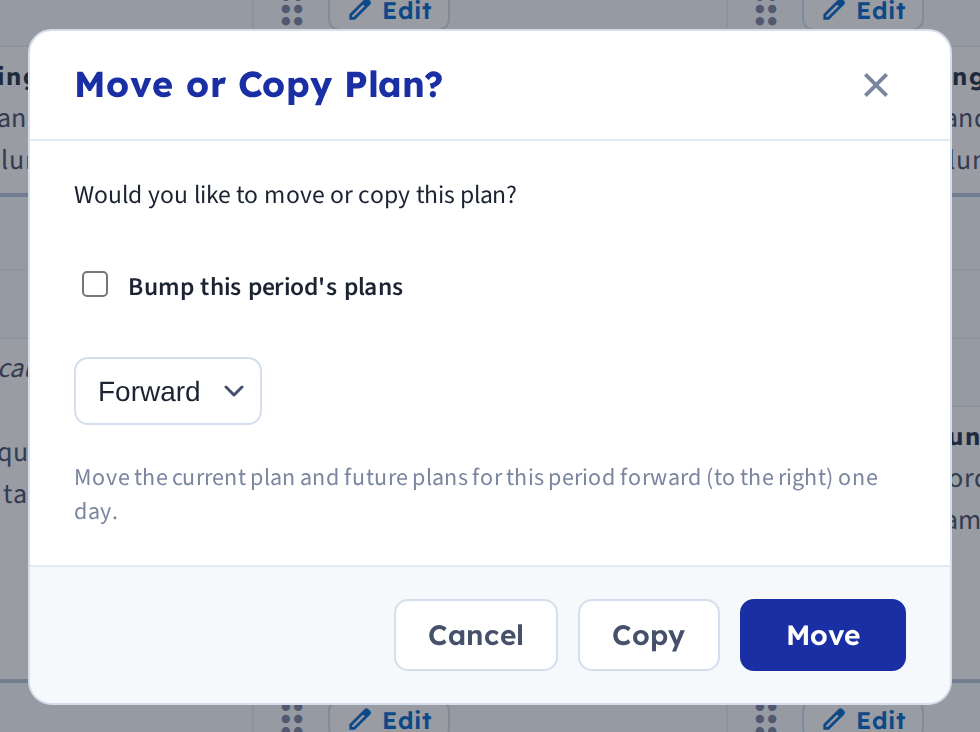
You'll also be offered the option to bump future plans forward, which shifts everything after the target rather than overwriting it — see Bump plans forward.
An Undo link appears at the top of the page afterwards.
Move a day to another week or planbook
Dragging works only within the week on screen, so use the Cubby to go further.
- Start dragging the day — the Cubby opens on the left.
- Drop the day into it. You're asked to name it; the date is filled in by default, but a name like "Lab day — states of matter" is easier to find later.
- Navigate to the week or planbook you want.
- Drag it out of the Cubby onto a day header.
Dropping onto a day header is what makes it land as a full day. Drop it on a single box and you won't get what you expect.
Telling days from single plans in the Cubby
Cubby items are marked with an icon: a single sheet is one plan, a day block is a whole day. To remove an item, click the red X.
The Cubby keeps its contents no matter which week or planbook you're viewing, which is what makes it useful for building a library of days you reuse — a review day, a substitute day, a lab.
Related: Copy and paste between plans · Drag plans between weeks with the Cubby