
Standards are off until you choose a set, because not every teacher tags plans with them.
- Click Planbooks in the navigation bar.
- Click More > Standards for the planbook you want.
- Turn on the sets you use.
- Save.
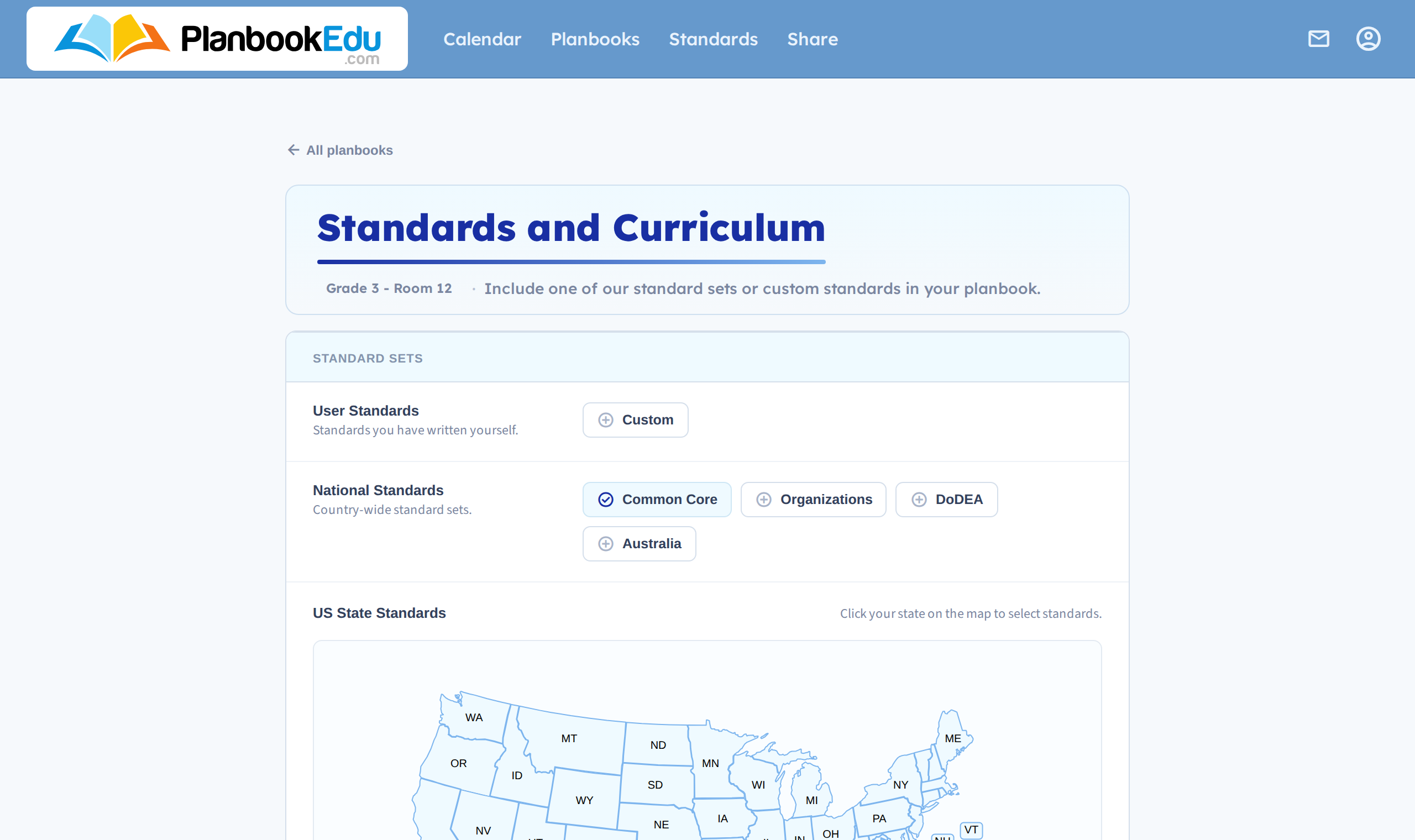
What's available
Your state — click your state on the map to pick from its standards.
Organizations — national sets, including Common Core.
Canadian provinces and regional sets — listed below the map.
Custom — a chip you switch on to write your own, or to use standards shared by other teachers. See Create custom standards and Search community standards.
You can enable more than one set. A teacher using Common Core for math and a state set for science turns on both, and the search box in the editor matches across everything enabled.
Enabling on a new planbook
You can also turn standards on while creating a planbook, rather than coming back afterwards — the option is on the same edit screen.
Then start tagging
With a set enabled, the lesson editor gains a Standards search box — see Attach standards to a plan.
If yours aren't listed
Turn on Custom and either write your own or search what other teachers have shared. You can also ask us to add a set.
Changing sets later is fine — see Change your standards set.