
The standards you picked in August aren't binding. Districts adopt new frameworks, you pick up a different subject, or you simply chose the wrong set.
- Click Planbooks in the navigation bar.
- Click More > Standards for your planbook.
- Turn sets on or off — click your state on the map, toggle Custom, or pick from the national and regional lists.
- Save.
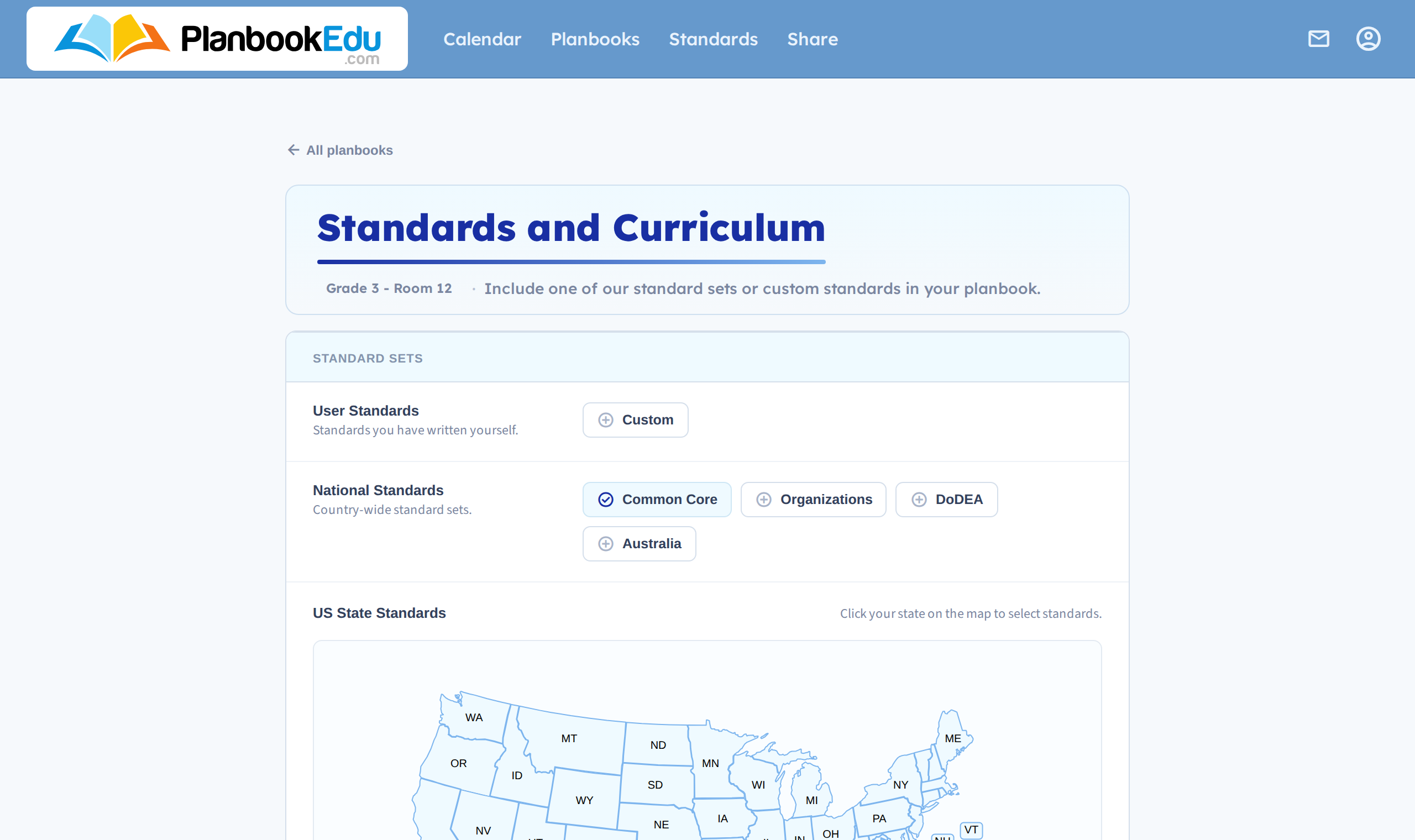
Adding a set
Straightforward. The new standards become searchable in the lesson editor immediately, and existing plans are untouched.
Running two sets at once is fine and common — the editor searches across everything enabled.
Removing a set
Removing a set stops it being offered for new tagging. Standards already attached to lessons stay attached — removing the set doesn't strip your plans.
That's usually what you want when a district switches frameworks partway through: last term's plans keep the tags they were written with, and new plans use the new set.
If you'd rather a plan didn't carry an old standard, open it with edit and remove the standard from that lesson — see Attach standards to a plan.
Effect on reporting
Standards reporting lists the sets in your planbook. Turning a set off removes its report; turning it back on brings it back, with your existing coverage intact.
Standards are per planbook
Each planbook has its own sets, so changing them in one doesn't affect another. A brand-new planbook starts with standards off and needs a set choosing.
Copying a planbook brings its standards settings across, so a copy of last year's planbook is ready to tag straight away.