
A full planbook share is more than most requests need. When someone wants this week or Tuesday, use a quick link.
Create one
For a day, click the cog next to the day's name and choose Link.
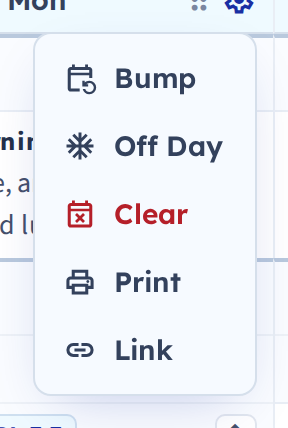
For a week, use Create Link in the weekly view's menu.
You get a link straight away, which you can copy and send however you like — email, chat, your school's system.
What you can link to
- A week — from the weekly view
- A day — from a day's menu
- A single period — from an individual plan
Each link opens only that scope. Someone sent a Tuesday link sees Tuesday, not your term.
When to use it instead of a full share
Quick links suit one-off requests:
- A substitute covering Thursday
- An administrator asking about a specific lesson after an observation
- A colleague who wants to see how you taught one unit
Use a full share when someone needs ongoing access — an administrator following your plans all year, or a page you embed in a website. Full shares also give you access restrictions and expiry dates, which quick links don't.
Anyone with the link can open it
Quick links aren't tied to an email address, so treat one like any other URL: whoever it's forwarded to can read those plans.
They're read-only, they respect hidden plans, and your notes never appear.
For a file instead of a link
If they've asked for something to print or keep, export it — see Export to Word or PDF.