
Most teachers' plans look similar year to year. Rather than retyping them, copy last year's planbook and edit from there.
Copying is a Premium feature. See Free vs. Premium.
Making the copy
- Click Planbooks in the navigation bar.
- Click Create Planbook.
- Choose to copy an existing planbook rather than start blank.
- Pick the planbook to copy from.
- Give the new planbook a name and a Start Date.
- Check the Previous Start Date — see below, it's the setting that matters.
- Click Copy.
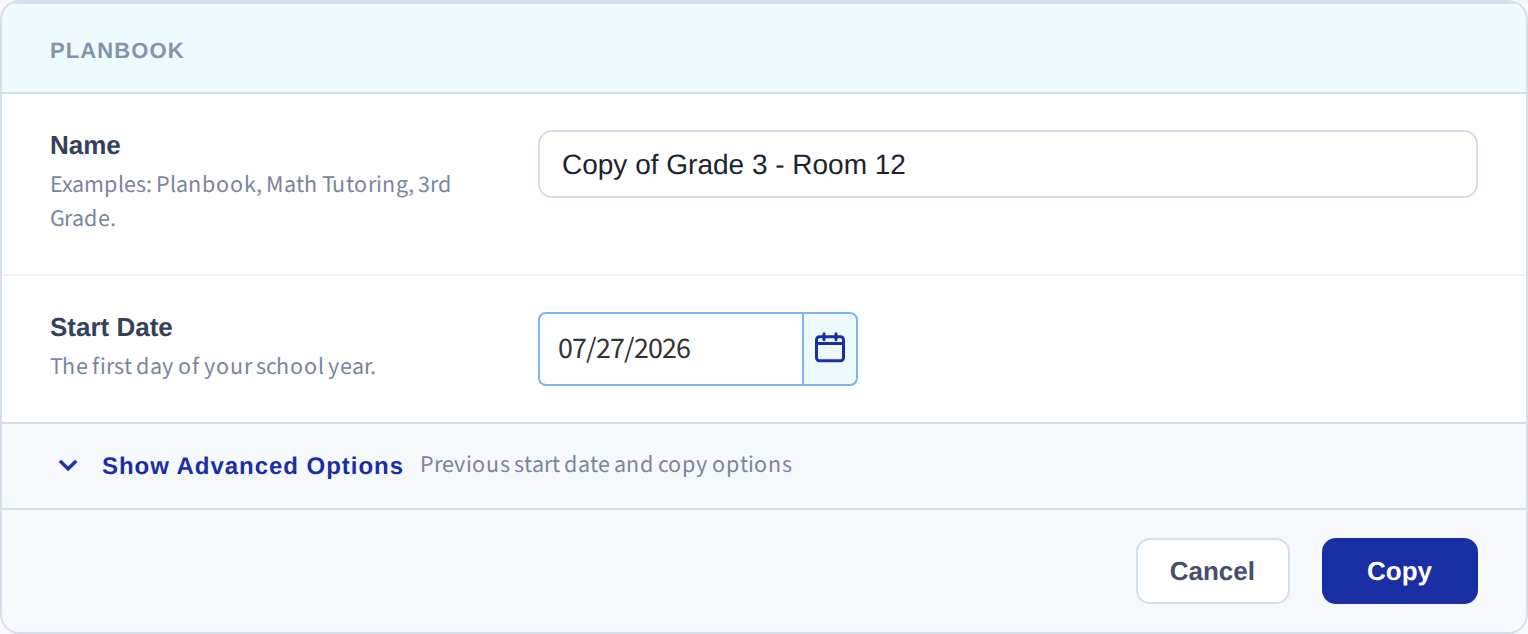
The copy runs in the background. Depending on how many are queued it takes anywhere from a few minutes to a few hours, and you'll get an email when it's done. The new planbook then appears in your Planbooks list.
Previous Start Date is the setting to get right
Plans are matched by school day number, not by calendar date — the 11th teaching day of the old planbook becomes the 11th teaching day of the new one. That's the only way to make a copy line up when the calendar shifts each year.
Which means the copy is only as good as the previous start date you give it. If it's wrong by two days, every plan lands two days off.
How each entry type is handled
Once — copied to the same numbered school day, counting from the start date.
Daily — an entry covering a single week moves to the same numbered week. An entry set for all days is applied to that period on every day of the new planbook.
Weekly — an entry set for all weeks is applied to that weekday and period every week, so a Monday 5th-period "Lunch" stays Monday 5th-period "Lunch". An entry set to repeat going forward is placed by counting weeks from the start date.
If it lands a day or two off
Delete the new planbook and copy again with a corrected Previous Start Date. Nudging that date is the fastest way to a better match — there's no need to fix the plans by hand.
Related: Start a new school year.