
Archiving takes a planbook off your main list while keeping every plan in it readable. It's what you want for finished years: out of the way, still there.
Archive it
- Click Planbooks in the navigation bar.
- Click More under Actions for the planbook.
- Choose Archive.
It disappears from your Planbooks list straight away.
View an archived planbook
The Planbooks list has tabs across the top — Current, All, Archived and Deleted, each with a count. Click Archived and your archived planbooks are listed; click a name to read its plans.
Current is the default, which is why an archived planbook seems to vanish: it's one tab away, not gone.
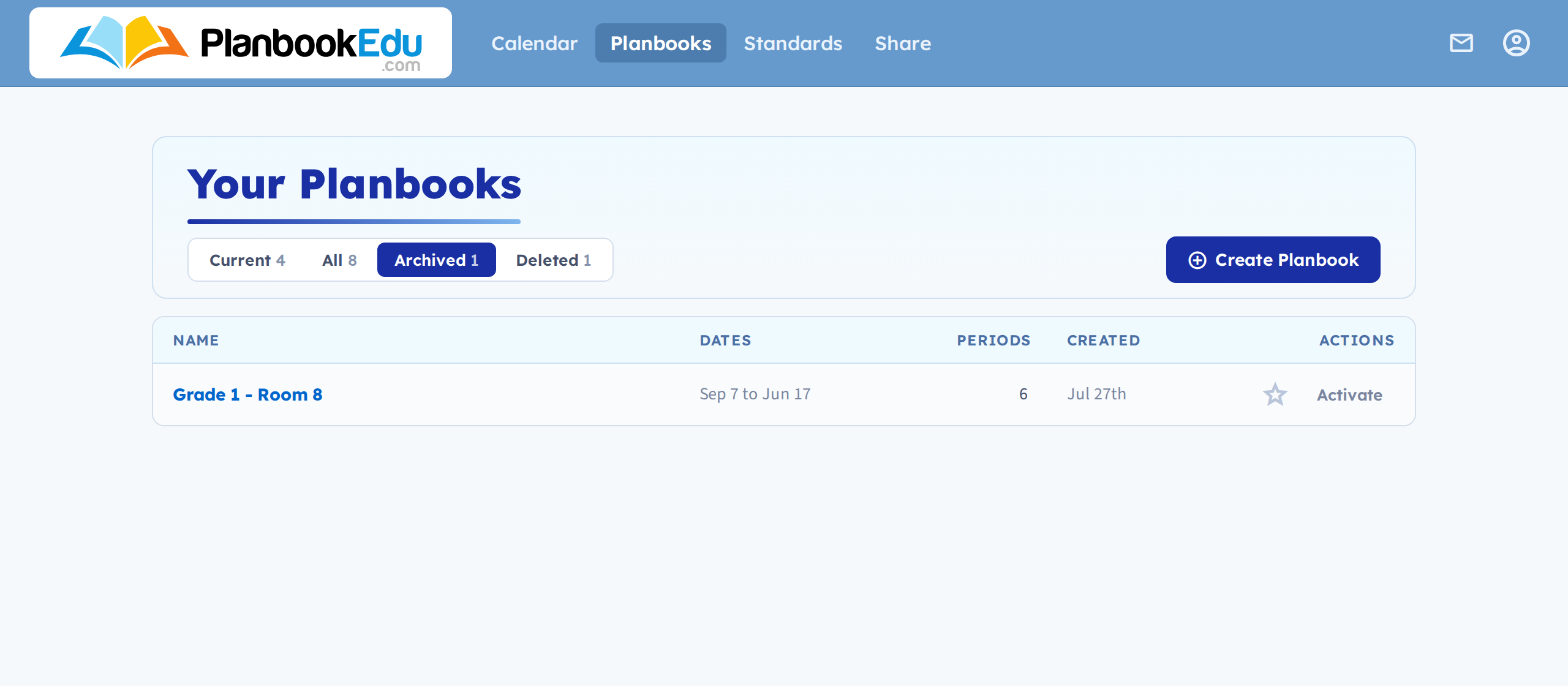
Archived planbooks are read-only. You can look at plans, but not edit them. If you need to change something, activate the planbook first.
Bring one back
In the Actions column of an archived planbook, click Activate. It returns to your normal list with every option available again, exactly as it was.
You can archive and activate as often as you like — nothing is lost either way.
Archiving vs. deleting
Archiving hides a planbook and preserves it. Deleting removes it. For a year you've finished, archive — there's no storage benefit to deleting, and old plans have a way of turning out to be useful.
Related: Manage multiple planbooks.