
A new planbook assumes a Monday–Friday week that repeats identically. If your school runs a cycle instead, set the rotation and PlanbookEdu will track it for you.
- Click Planbooks, then Edit next to your planbook.
- Find the Rotation field.
- Choose your schedule.
- Click Save.
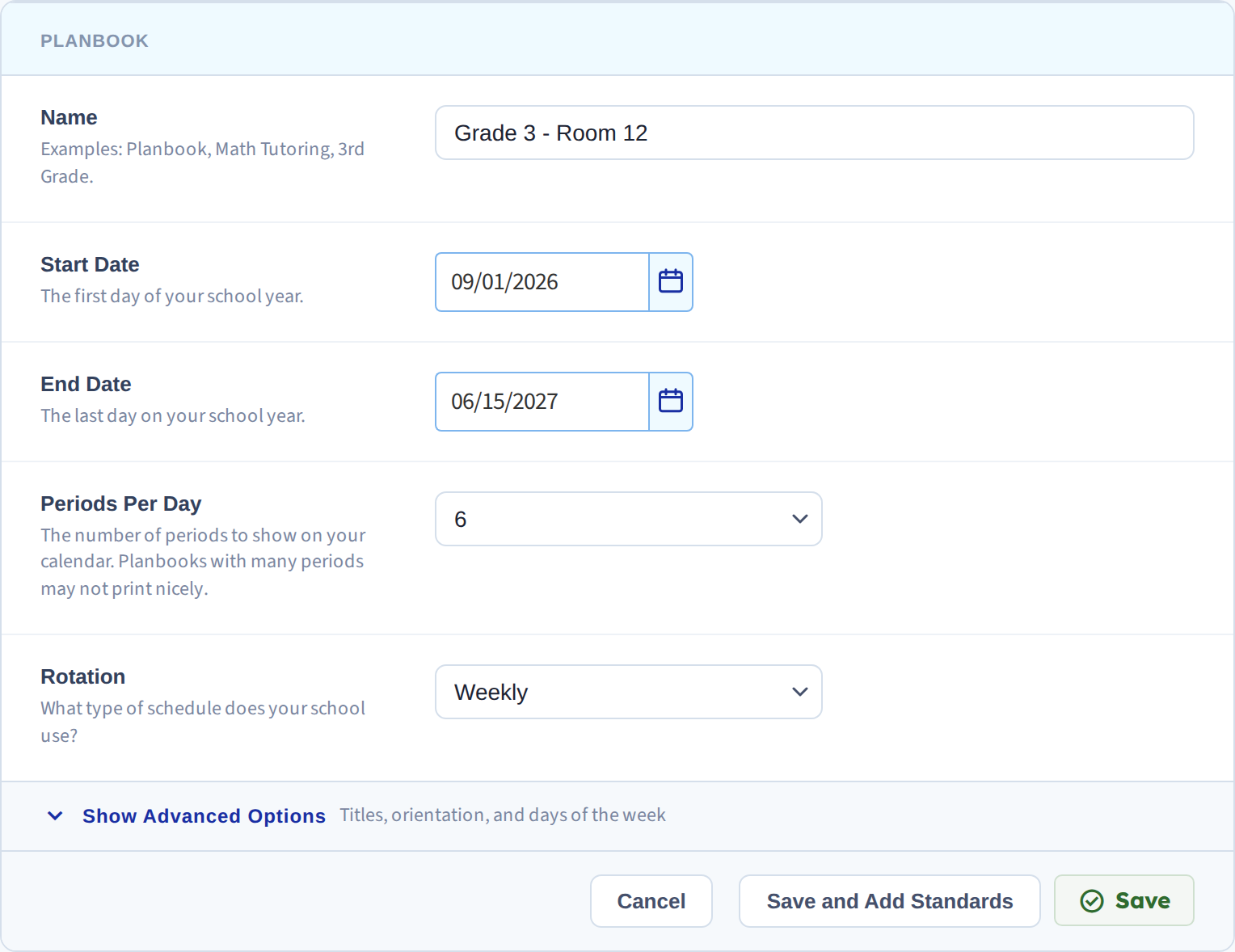
The options
- Weekly — the default; every week is the same
- A/B Days — two alternating days
- A/B Weeks — two alternating weeks
- 3 Days through 10 Days, and 12 Days — a fixed cycle of that length
Pick the one that matches how your school actually counts. A school calling it a "six-day cycle" wants 6 Days, not A/B Days.
Why it matters beyond labeling
Rotation isn't cosmetic. Once it's set, PlanbookEdu knows where you are in the cycle on any given date, which changes three things:
- Off days don't break the cycle. A snow day pushes the cycle along instead of skipping a letter, so the day after a closure is the day you'd expect.
- Bumping respects the rotation. When you bump plans forward, plans land on the next matching day in the cycle rather than simply the next date.
- Repeating plans follow the cycle. A plan set to repeat lands on every A-day, not every Tuesday.
Labeling the days
Setting the rotation tells the system about your cycle but doesn't print "Day A" anywhere. To show the labels in the grid, see Rotation labels.
You can change the rotation mid-year. Plans you've already written stay on the dates they're on — changing the rotation re-labels the cycle going forward, it doesn't shuffle existing plans.