
New periods are always added to the end of your planbook, so sooner or later the order on screen won't match the order you teach. Reordering fixes that, and it moves the plans along with the period.
- Click Planbooks in the navigation bar.
- Click More under Actions for the planbook you want.
- Choose Reorder Periods.
- Drag the periods by their handle into the order you want.
- Click Save.
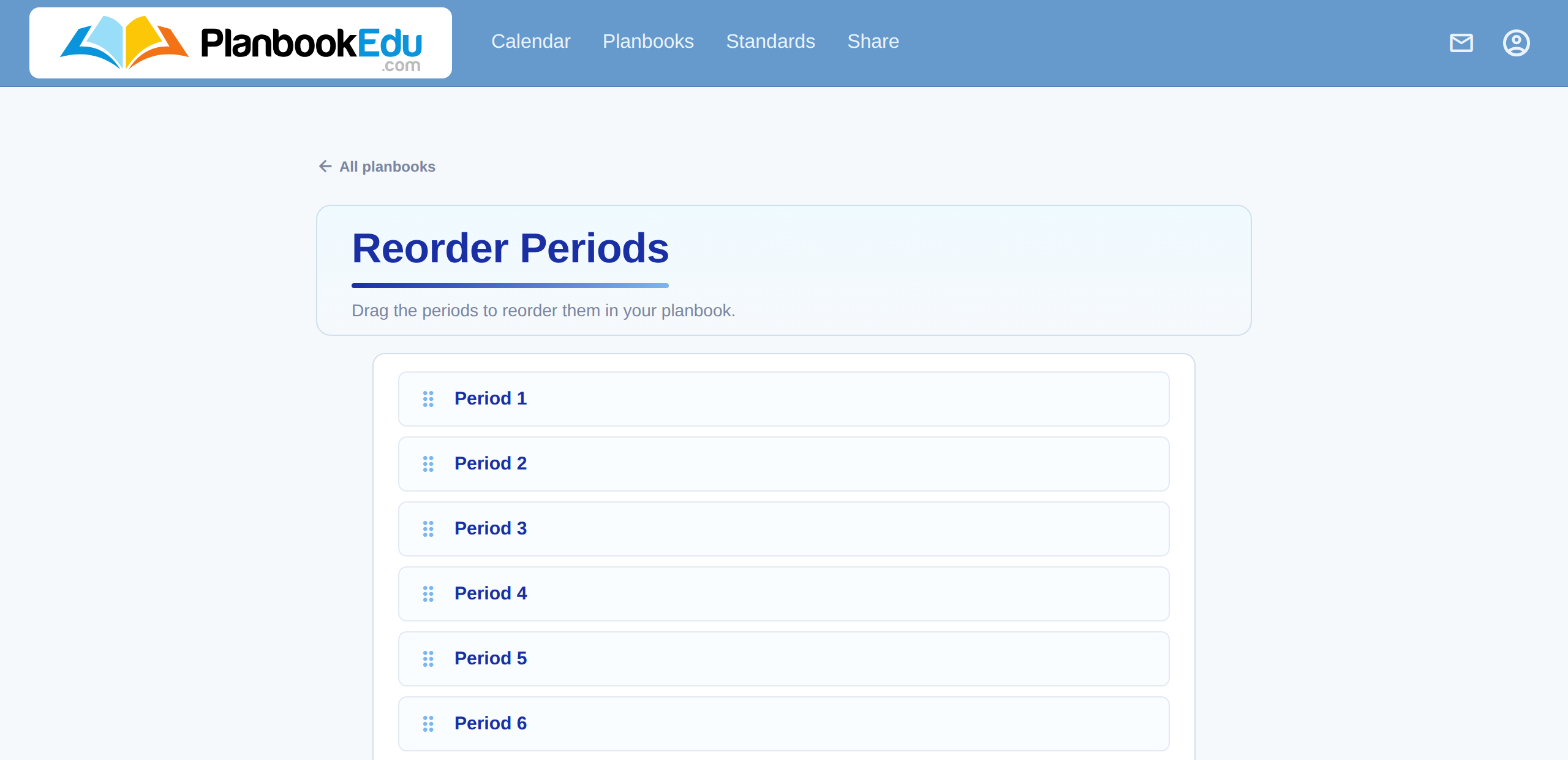
Everything in a period travels with it — plans, standards and attachments. You aren't moving labels around an empty grid; you're moving the contents too.
Reordering is also the first step when you want to delete a period that isn't last. Periods are removed from the bottom up, so drag the unwanted one to the bottom, save, then reduce the period count.