
An off day is any day you don't need plans for: a holiday, a break, a field trip, a snow day. Marking them keeps your planbook honest about how many teaching days you actually have, and lets you push plans past them instead of losing a lesson to a closure.
There are two ways in.
From the Off Days screen
Best for setting up the year in advance.
- Click Planbooks in the navigation bar.
- Click More under Actions for your planbook.
- Choose Off Days.
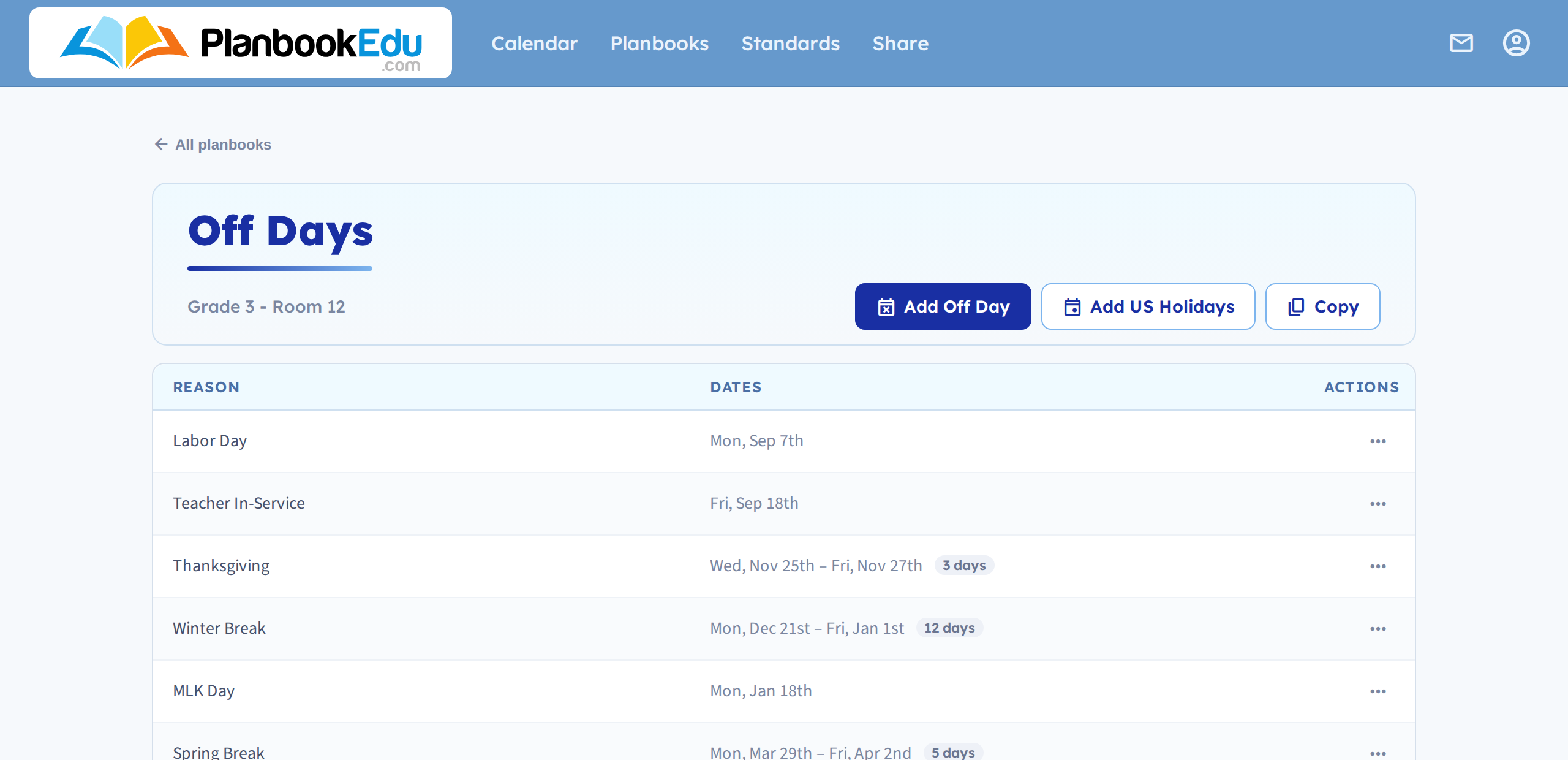
You get three buttons:
Add Off Day — enter a single day or a date range, with a reason ("Thanksgiving Break"). A range covers the whole span, so a week off is one entry, not five.
Add US Holidays — loads the common US holidays in one go. Untick any your district doesn't observe before saving. This is the fastest way to start; add your district's own closures afterwards.
Copy From Another Planbook — pulls the off days from a planbook you already set up. If you teach several sections that share a school calendar, do the work once and copy it to the rest.
Everything you've added shows in a list you can edit or remove.
From the calendar, while planning
Best for the snow day you find out about that morning.
- Click the cog icon next to the day's name in the weekly view.
- Choose Off Day.
- Enter a reason.
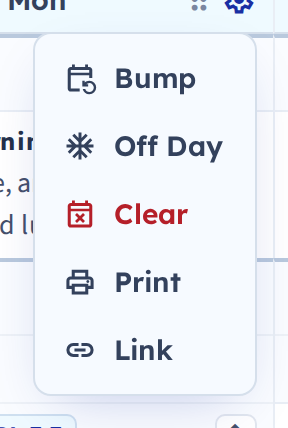
To undo it, click the cog on an off day and choose Remove Off Day.
What happens to plans on that day
When you mark a day off you're asked whether to bump your plans forward.
- Bump — the day's plans move to the next teaching day, and everything after shifts along. This is almost always what you want for a closure.
- Don't bump — the day's plans are removed and the rest of your planbook stays where it is.
If your planbook uses a rotation, off days shift the cycle rather than skipping a position, so the day after a closure is the cycle day you'd expect.