
You lost a day to a snow day, an assembly, or a fire drill that ate third period. Bumping moves that day's plans forward and pushes everything after them along too, so you don't have to re-enter a week of lessons.
Bump a whole day
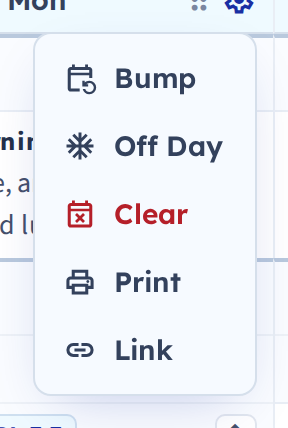
- In the weekly view, click the cog icon next to the day's name.
- Choose Bump.
- Confirm.
The day's plans move to the next teaching day, and all future plans shift forward one day.
What actually moves
This is the part worth understanding, because not everything gets bumped.
One-time plans move. So do plans repeating on a rotation cycle.
Daily and weekly repeating plans stay put. That's deliberate. If Art is every Tuesday, a Monday closure shouldn't drag Art to Wednesday — it still happens Tuesday. The same logic applies to anything you set to repeat daily.
The exception is a planbook on a rotation. There, classes are tied to the cycle rather than the weekday, so they bump along with everything else.
Locked plans stay put, and others move around them. If an assembly is fixed to a date, lock it and bumped plans skip over it to the next available day.
What gets skipped
Bumping only lands plans on days you actually teach. Off days you've already marked — holidays, breaks — are skipped, as are weekends and any days excluded from your days of the week.
Bumping and off days together
For an unplanned closure you usually want both: mark the day off and bump. Click the cog, choose Off Day, enter a reason, and tick Bump plans forward. One step instead of two — see Set up off days, holidays, and breaks.
If you bump by mistake
An Undo link appears at the top of the page, just below the planbook title. Click it to reverse the bump. See Undo a change.
Related: Bump a single period · Bump plans backward