
Exporting gives you a file rather than a printout — useful for emailing a substitute, filing plans for an evaluation, or keeping a copy.
Exporting is a Premium feature. See Free vs. Premium.
Export a day
- Click the cog icon next to the day's name.
- Choose Print.
- Pick Word or PDF.
Export a week
- Click Print in the weekly view.
- Choose a layout.
- Pick Word or PDF.
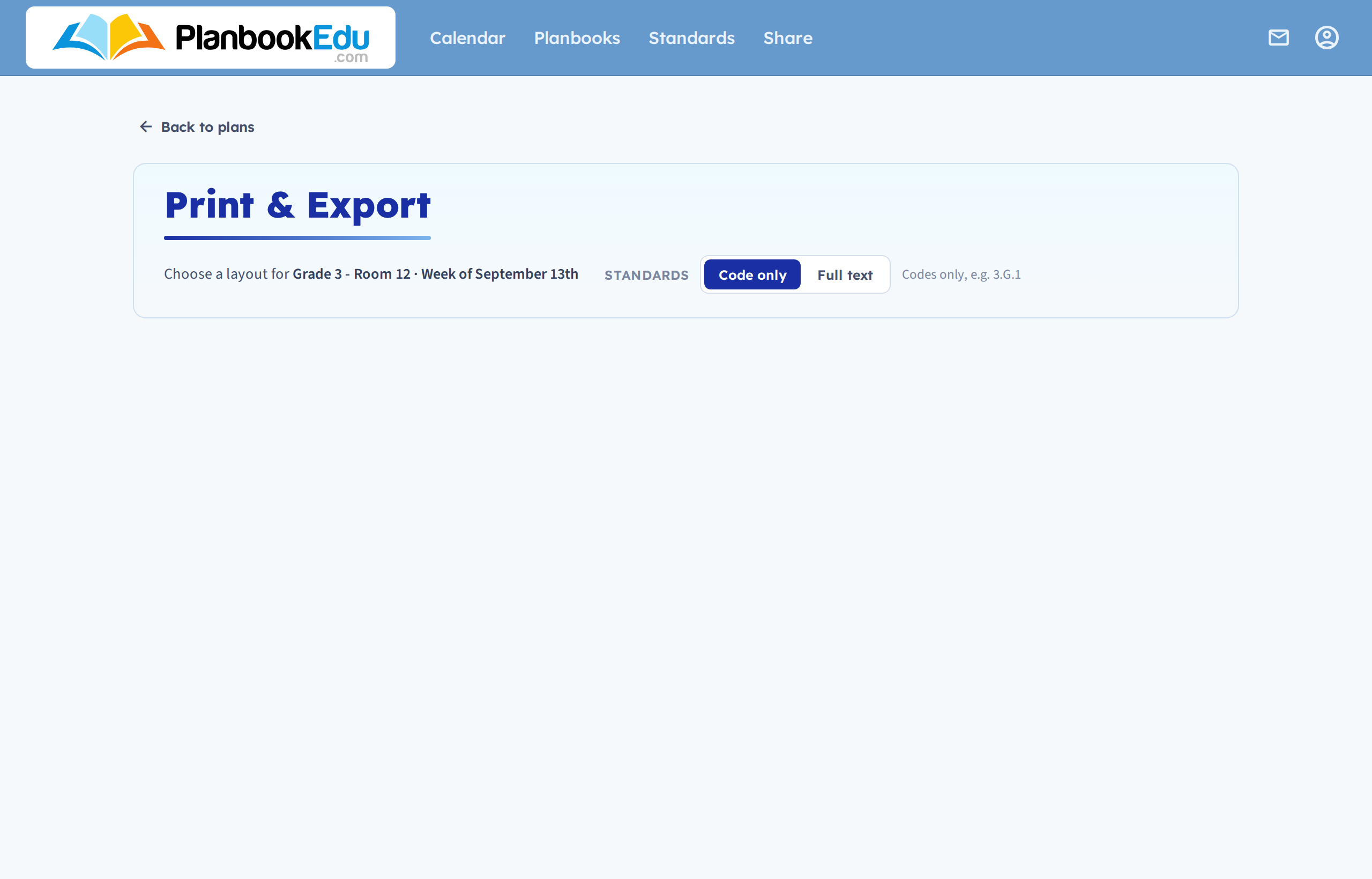
The week gives you more layout choice — Day by Day and Split — Two Pages both handle long plans better than the standard grid. See Print your plans.
Word or PDF?
PDF looks the same everywhere and keeps your colours and highlighting without any browser settings. Use it for anything you're sending to someone else.
Word is editable. Use it when a school template needs your plans pasted in, or when someone needs to annotate them.
Standards
If your planbook uses standards, pick Code only or Full text before exporting. Full text makes for a much longer document.
Exporting the whole year
Day and week exports run immediately. A whole planbook is a much bigger job and works differently — see Export an entire planbook.
If a PDF won't print properly
Some older printers and computers struggle with the PDFs we generate — you may see a font error. Contact support and we can switch your account to produce a more compatible PDF.
Saving to Dropbox or a school drive
Export the PDF, then upload it wherever it needs to go — see Save plans to Dropbox, Google Drive, or a school drive.