
You created a share, ticked Send notification email, and the person says nothing arrived.
Almost always this is a school district's firewall or spam filter stopping mail from an outside sender. It's not something we can fix from our end, and resending usually gets caught the same way.
Send the link yourself
The reliable fix. An email from your own address, inside the same school system, gets through where ours doesn't.
- Click Share in the navigation bar.
- Find your share in the list — the Link is in the third column.
- Copy it.
- Paste it into an email, or into whatever your school uses for messages.
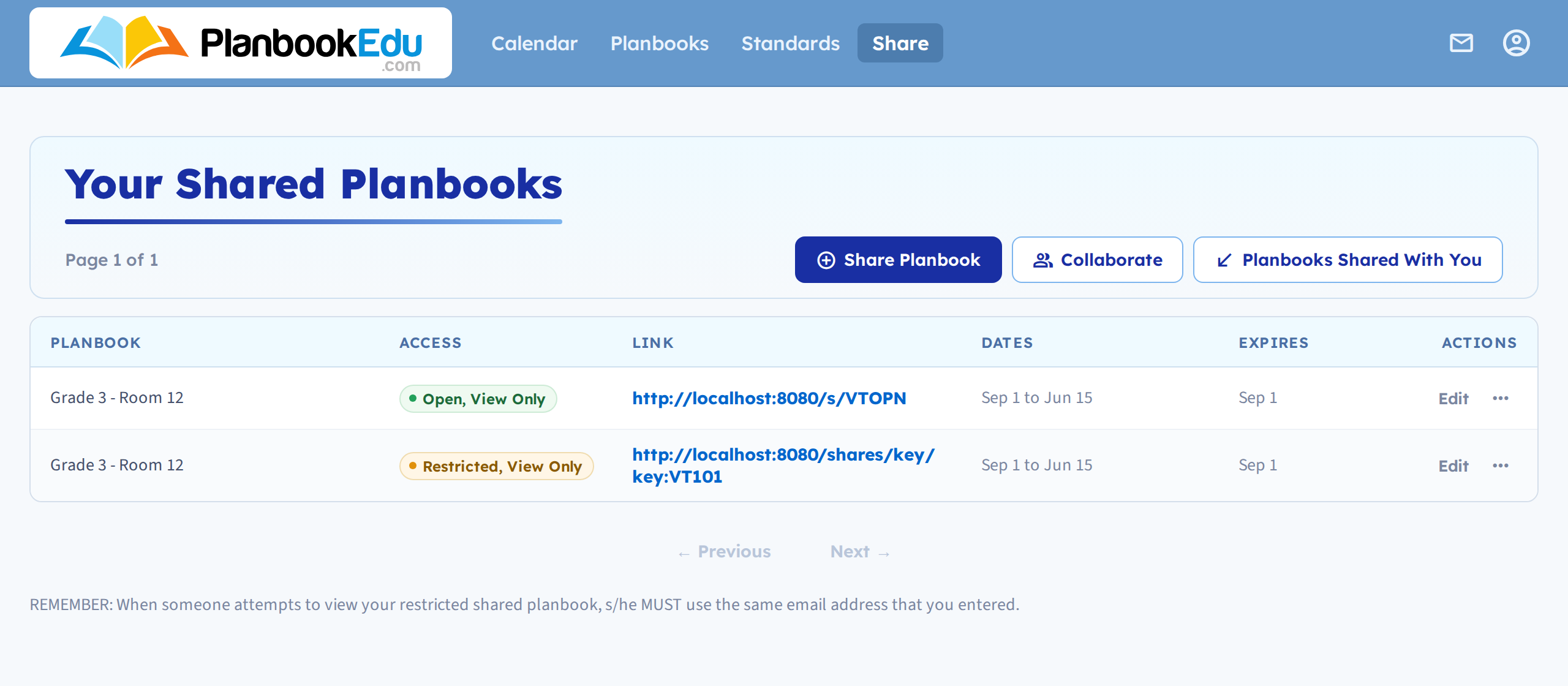
The link works exactly the same however it reaches them.
Before you resend, check the basics
- The junk folder — ask them to look, and to mark it not-spam so future mail arrives.
- The address on the share. A typo means the notification went somewhere else entirely. Edit the share and check.
- Access and emails match. With Restricted access, only listed addresses can open the share. If someone forwards the link to a colleague who isn't listed, it won't work for them — that looks like a broken link rather than a permissions problem.
For future shares
If you know a district's filters are strict, don't tick the notification box. Create the share, copy the link, and send it yourself from the start.
Related: Share your planbook · Share a week, day, or single period