
There are two ways to get plans to an administrator, and which one you use depends on whether your school has a PlanbookEdu group account.
If your school uses PlanbookEdu group accounts
Use turn in. It's built for exactly this: submit a week's plans to your administrator, who reviews them and can leave comments.
See Ask teachers to turn in planbooks and Review and comment on plans.
Your administrator already has access, so there's no link to create or manage.
Otherwise, create a share
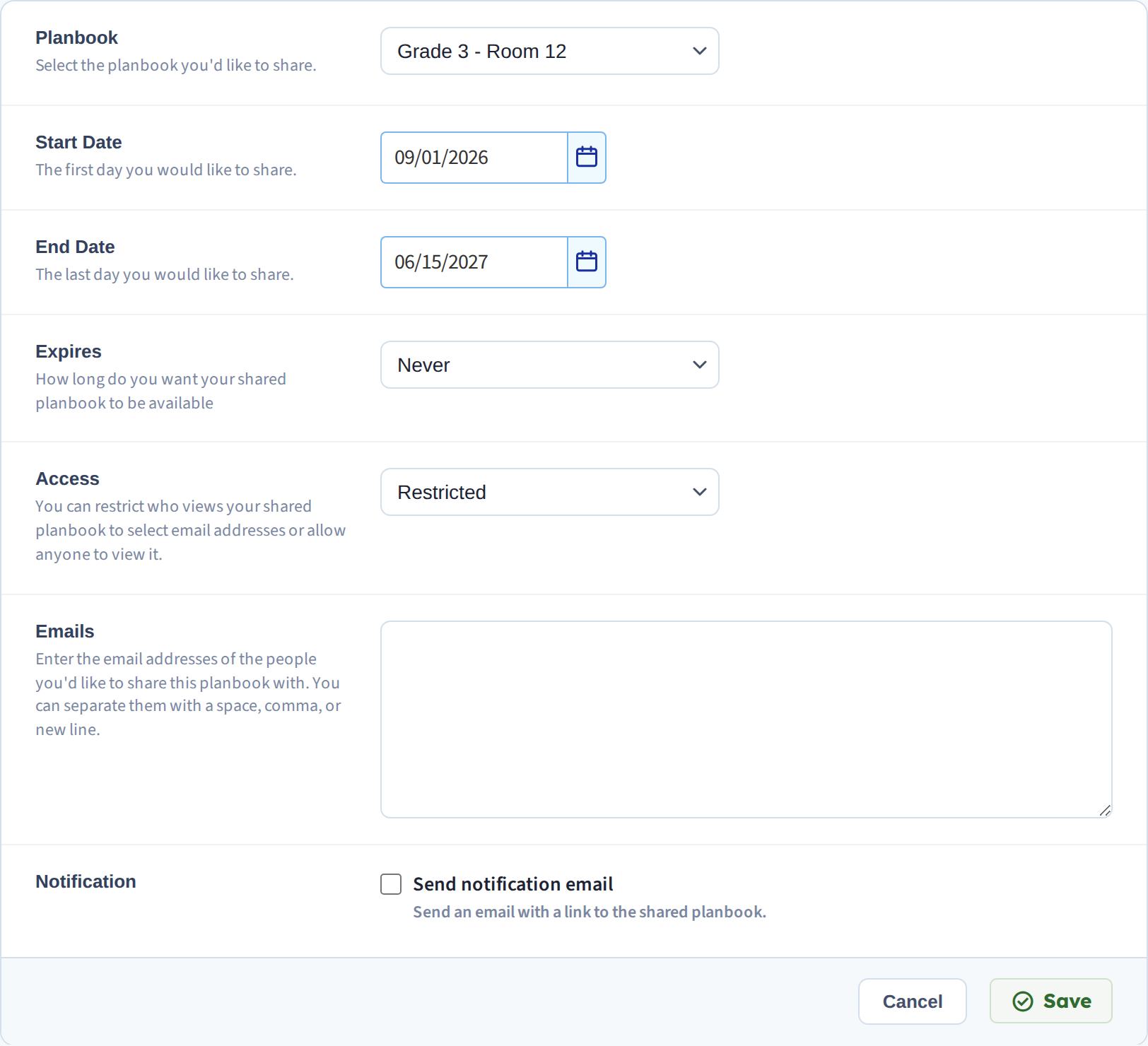
For an administrator outside a group account — or one who just wants to look at your plans — create a share:
- Access: Restricted, with their email address. Don't use Open for an evaluator.
- Expires: 1 Year, or Never if they'll follow your plans all year.
- Dates: the range they should see. Usually the whole year.
- Notification: tick it to email them the link directly.
For a one-off — a lesson they're observing — a quick link to that day or period is lighter than a full share.
What they'll see
The plans as you've written them, read-only, always current. They don't need a PlanbookEdu account to open a share link.
Your notes are never visible.
Hidden plans are hidden from share links — but not from administrators in a group account, who see them regardless.
If they'd rather have a file
Some administrators want a document to file rather than a link. See Export to Word or PDF, or Export an entire planbook for the whole year.
A link is better where it's an option — it doesn't go stale when you change a plan.
If the email doesn't arrive
School spam filters are the usual culprit. See The share email didn't arrive — you can copy the link and send it yourself.