
Sharing is read-only — right for a parent, a substitute or an administrator. If a colleague actually writes plans with you, add them as a collaborator instead.
Collaboration is a Premium feature. See Free vs. Premium.
Add a collaborator
- Click Collaborate — it's alongside the Share Planbook option.
- Find the planbook in the list and click Add/Edit Collaborators.
- Enter their email address. Use Add Another Collaborator for more.
- Save.
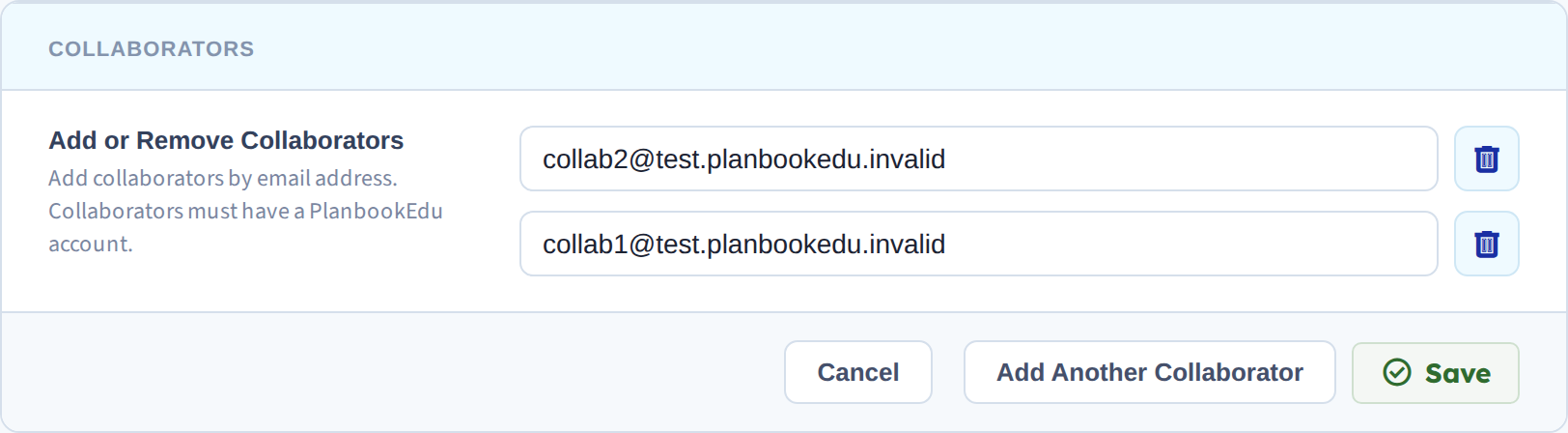
There's no limit on how many collaborators a planbook can have.
Two things to know before you start
They need a PlanbookEdu account already. Adding an address that isn't registered won't create one — ask them to sign up first.
They aren't notified. No email goes out; telling them is up to you. This catches people out — the collaborator sees nothing until they happen to look at their planbooks list.
What a collaborator can do
The planbook appears in their Planbooks list with your email address in parentheses, so it's clear whose it is.
They can read and write plans. They cannot change planbook settings or delete the planbook — that stays with you as the owner.
Editing at the same time
Changes appear in real time, so you'll see your colleague's work as they save it.
To stop you both editing the same box, a plan is locked while someone is editing it. When they finish, it unlocks and their changes appear. If a box won't open, that usually means your collaborator is in it — see Why can't I edit some days?.
Collaborators see everything
Hidden plans are hidden from shares, not from collaborators. Your notes stay private.
Removing someone
Go back to Add/Edit Collaborators and remove them. They lose access immediately; the plans they wrote stay in your planbook.