
Sometimes most of a week is fine to share but one box isn't — a quiz attached to a lesson, a note about a particular student, an assessment you'd rather students didn't preview.
You can hide individual plans from shares.
Hide a plan
- Click Edit on the box.
- Under Extras, tick Hide from shared plans.
- Click Save.
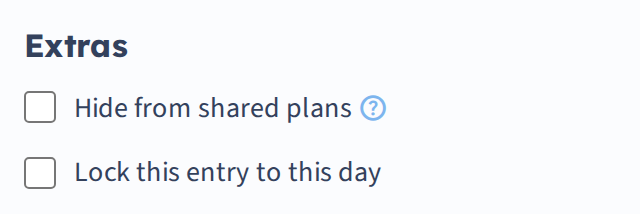
The plan now shows an icon in your own planbook marking it as hidden, and appears as an empty box to anyone viewing a share.
To unhide it, edit the plan, untick the box, and save.
Hide a period for the whole year
Tick the hide option and set the plan to repeat — weekly or daily — and that period stays hidden for as long as the repeat runs. That's the way to keep a planning period or a sensitive block out of a public page permanently. See Repeat a plan across the year.
Who can still see hidden plans
This is the important limitation:
Hiding applies to shared planbooks only. Collaborators and administrators can still see hidden plans.
So hiding is not a privacy control against your own school. It stops plans appearing on a website or in a link you send out; it doesn't hide them from a group administrator reviewing your planbook, or from a colleague you're planning with.
If something must be visible only to you, put it in a note — notes are never visible to anyone else, under any circumstances.