
Clearing empties every plan in a day. You can leave the rest of the planbook where it is, or close the gap by pulling later plans back.
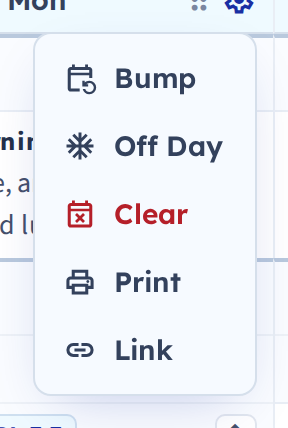
- In the weekly view, click the cog icon next to the day's name.
- Choose Clear.
- Decide whether to tick Bump plans back.
- Confirm.
With or without bumping back
Without — that day becomes empty and every other day stays exactly where it is. Use this when the day genuinely has nothing in it, and the rest of your sequence is still right.
With bump back — the day is cleared and all future plans move back one day to fill the space. Use this when you're removing a day that was never taught and you want the sequence to close up behind it. See Bump plans backward.
Clear vs. off day
They look similar but mean different things.
- Clear removes the plans. The day is still a teaching day.
- Off Day marks the day as one you don't teach at all — it's excluded from bumping calculations and shows a reason like "Snow Day".
For a holiday or closure, mark it as an off day. Clearing is for a day whose plans you want gone.
If you clear by mistake
An Undo link appears at the top of the page, below the planbook title.
If you've moved on since, plans deleted from the calendar are kept for three days — see Recover deleted plans.