
Links are useful for the video you're showing, the article the class is reading, or the online activity they'll do — anything you'd otherwise have to find again on the day.
- Click edit on the lesson box.
- Type the words you want to be the link, then select them.
- Click the link button in the toolbar — the chain icon, which becomes active once text is selected.
- Enter the web address.
- Click Insert, then Save.
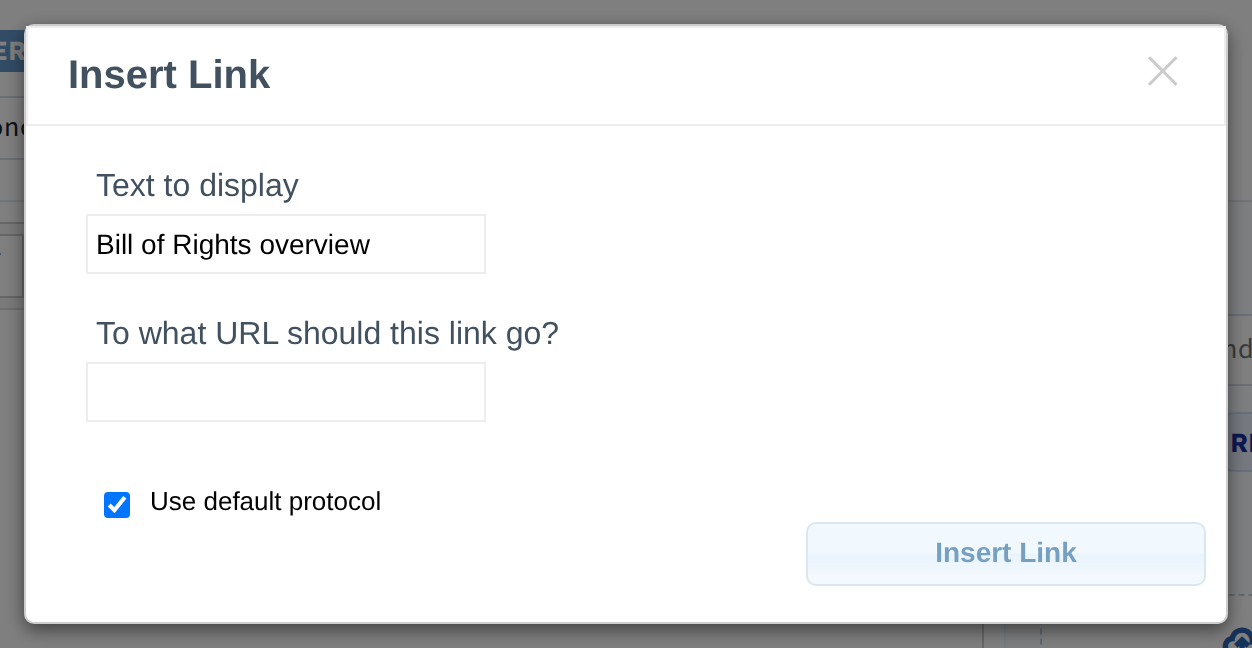
The selected text becomes a clickable link in your plans, and stays clickable when the planbook is shared, embedded, or viewed by an administrator.
Link the words, not the address
Select "Bill of Rights overview" and link that, rather than pasting a long URL into the box. Long addresses wrap awkwardly and make the cell hard to read — which matters most when you print.
Linking to a file instead
A link points at the web. To include a worksheet or handout, attach it to the lesson instead — see Attach files to a lesson plan, or Attach from Google Drive if it already lives in Drive.