
Some things happen on a date and only that date — an assembly, picture day, a standardised test. When you bump plans forward, those shouldn't move along with everything else.
Locking a plan fixes it in place. Bumped plans skip over it and land on the next available day.
How
- Click Edit on the box.
- Under Extras, tick Lock this entry to this day.
- Click Save.
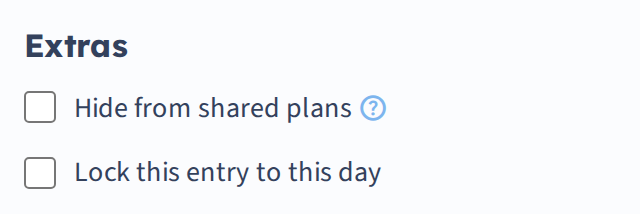
That plan now stays at its date and period no matter what you bump.
What locking does and doesn't do
It affects bumping only. A locked plan is anchored against bumps — it isn't read-only. You can still open it and edit the text.
Other plans route around it. Bump a day into a locked plan and the bumped plan continues to the next day rather than overwriting it. This is the whole point: your sequence shifts, the fixture doesn't.
When to use it
Lock the handful of dates that are genuinely immovable — assemblies, exams, field trips, the last day before a break. Everything else should stay bumpable so a snow day shifts your unit cleanly.
If you find yourself locking most of the week, you probably want off days or a template instead.
Unlocking
Open the plan, untick the option, and save.