
Spell check underlines misspelled words as you write, and flags them in your plans so you can spot them at a glance.
Spell check is a Premium feature. See Free vs. Premium.
Turn it on
- Click the wrench icon in the weekly view.
- Under Spell Check, switch it on.
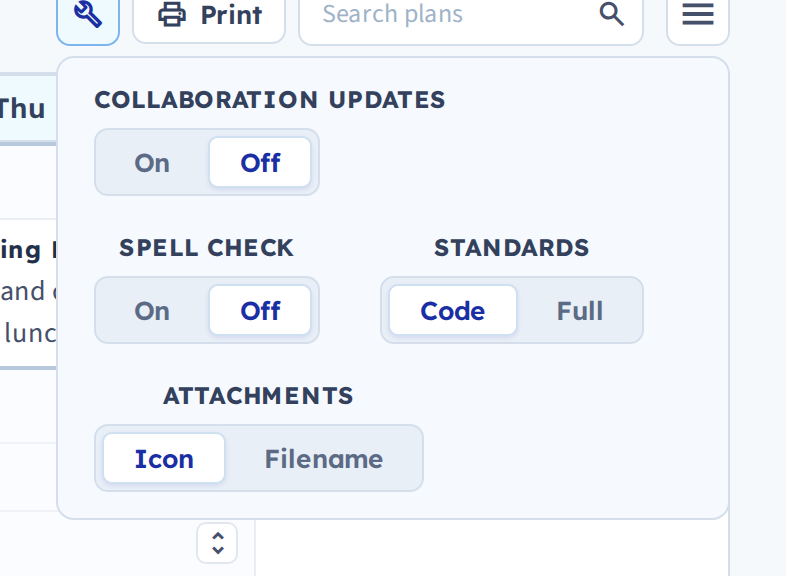
It stays on until you turn it off.
What you'll see
While editing, a misspelled word gets a dotted red underline.
If you leave a flagged word uncorrected, it also shows in red in your daily, weekly and monthly views — a deliberate nudge, so a typo in a plan you're about to print or share doesn't go unnoticed.
Words that aren't really mistakes
Abbreviations, names and subject-specific terms get flagged even when they're correct. To clear the red without changing the word, open the box again with edit or quick edit and click Save. The word stays as you wrote it and the highlight is removed.
Turning it off
Same place — click the wrench and switch it off. Existing red marks clear as you resave the plans that carry them.