
You rarely need to retype a plan. There are two ways to get one from where it is to where you want it.
Within the same week: drag it
Each box with content in it has a drag handle .
- Grab the handle on the plan you want.
- Drag it onto the destination box.
- Choose move or copy.
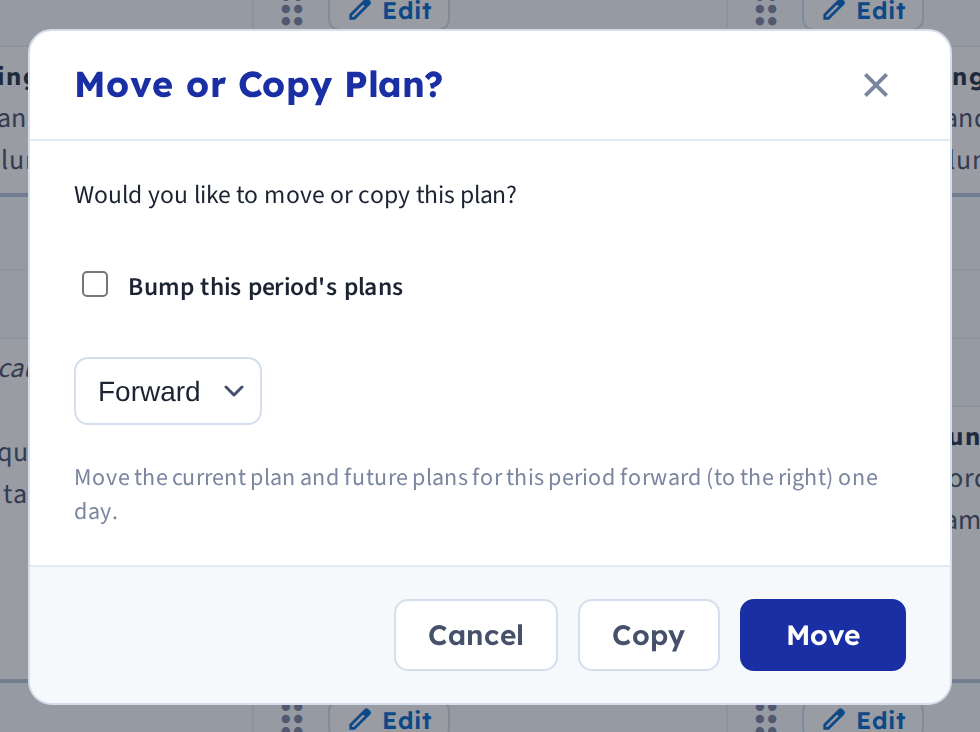
Move leaves the original empty; copy leaves it in place. You'll also be offered the option to bump that period's plans forward rather than overwriting what's already in the target.
Across weeks or planbooks: use the Cubby
Dragging only works within the week on screen. To go further, park the plan in the Cubby first.
- Start dragging the plan — the Cubby opens automatically on the left.
- Drop it into the Cubby.
- Navigate to the week — or the planbook — you want.
- Drag it back out onto a box.
The Cubby's contents follow you everywhere, across weeks and across planbooks, which makes it the tool for reusing last month's lesson or moving material between two classes you teach. See Drag plans between weeks with the Cubby.
Copying a whole day
Days move the same way — grab the day header rather than a single box. See Move and copy days.
Pasting text from elsewhere
To bring text in from Word, Google Docs or a website, open the box with edit and paste into the editor. Formatting usually comes along; if it arrives looking wrong, clear the formatting after pasting, or paste through a plain-text editor first. See Formatting text in a plan.
If you find yourself copying the same plan into every week, repeat it instead — see Repeat a plan across the year.